
Still on 60Hz? Connect a High-Refresh Monitor to Your Laptop and Game Smoother
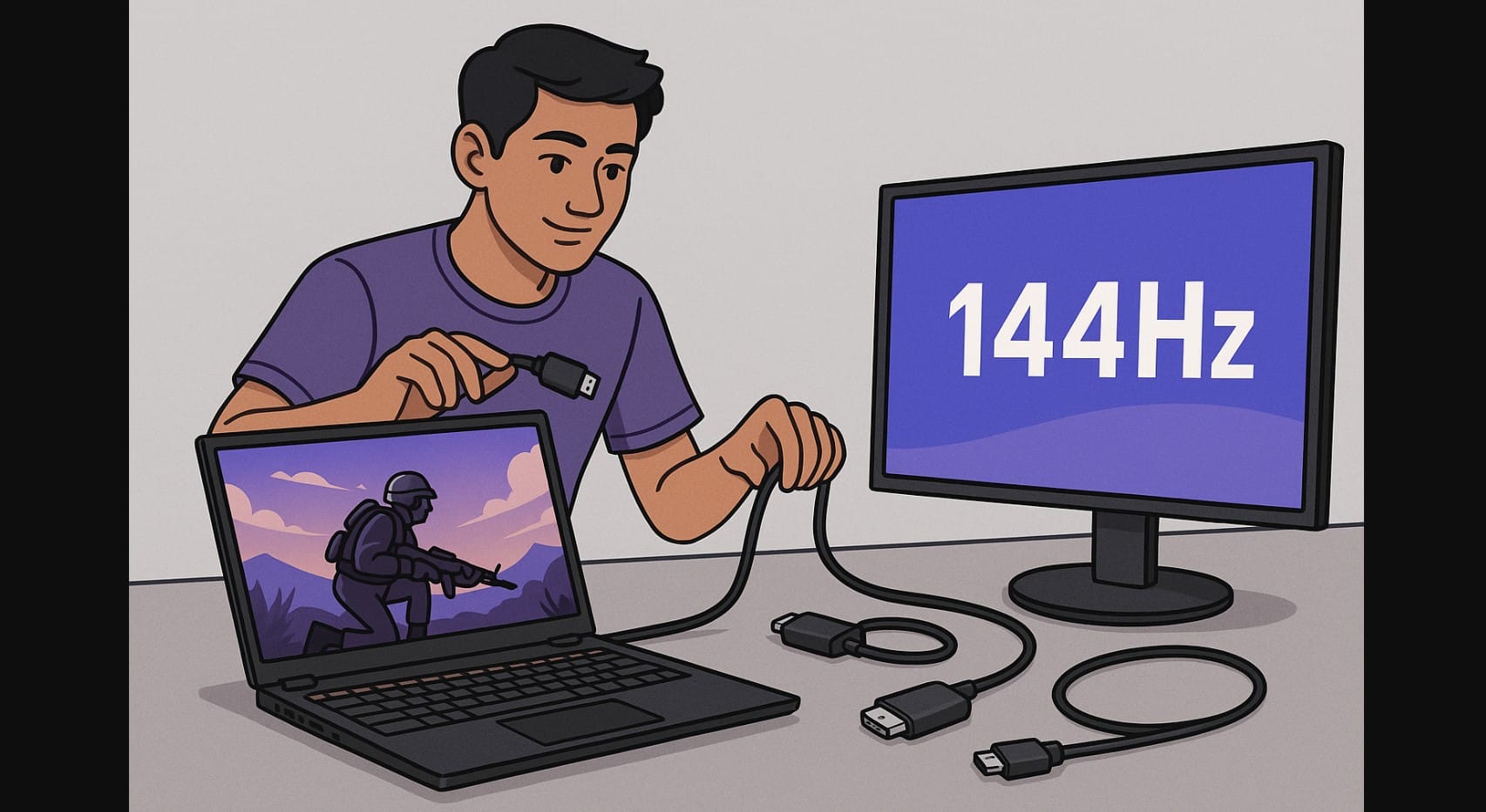
Got a gaming laptop with a strong GPU but stuck with a small screen 60Hz? You’re not alone. Many laptops under ₹1L can easily push 100+ FPS in games like Valorant or CS2 but the built-in display holds them back.
Here’s how to unlock your laptop’s true potential with an external 144Hz or 165Hz monitor, what to check for before buying one, and how to get it working properly especially with Indian ports, adapters, and power setups.
1. Your Gaming Laptop Might Be Fast But the Screen Is Slowing It Down
Budget Models <₹55,000 Still Ship with 60Hz Displays
Laptops with RTX 2050 GPUs or lower often include a 60Hz screen to keep prices low. That means:
- You see just 60 FPS max, even if your GPU is outputting more
- Competitive games feel laggy or blurrier than they should
Built-In Displays Can’t Be Replaced or Upgraded
Unlike desktops, laptop screens are locked in. If your display is 60Hz, your only real solution is to plug in a better monitor externally.
2. An External Monitor Can Instantly Boost Visual Smoothness
You’ll See More Frames and Feel the Difference
- 120Hz or 144Hz displays offer smoother motion, faster reaction, and less blur
- Input feels snappier in games like CS2, Apex Legends, and FC
- G-Sync or FreeSync support adds extra fluidity if available
Your GPU Gets to Breathe
- With an external monitor, the GPU isn’t capped by the built-in screen’s refresh rate
- You actually experience the full FPS your hardware is producing
3. Not All Laptop HDMI Ports Are Equal – Check Carefully
HDMI Version = Refresh Rate Limits
- HDMI 1.4: 1080p at 60Hz only
- HDMI 2.0: Supports 1080p 144Hz or 1440p 120Hz
- HDMI 2.1: Needed for 4K 120Hz, usually only in high-end laptops
To know your HDMI version, check the official spec sheet on the brand’s website it’s often not listed on the box.
USB-C DisplayPort Can Bypass HDMI Limits
- Some gaming laptops support DisplayPort over USB-C (Alt Mode)
- This can output 1080p 165Hz or even 1440p 144Hz
- Look for “DP 1.4,” “Thunderbolt 4,” or “USB-C Display Out” in specs
4. In India, Use Video Adapters for High Refresh Setup
Use Certified Video Adapters That Support Full Bandwidth
- Cheap adapters = locked at 60Hz, even if your monitor supports more
- Choose brands like UGREEN, CableCreation, or Anker
- Confirm support for 1080p 144Hz before ordering not just “4K support”
Your Monitor Needs the Right Input Too
- Many budget 144Hz monitors in India only support high refresh on DisplayPort, not HDMI
- Match your laptop’s output port with the monitor’s input or use a good USB-C to DP adapter
5. How to Enable 144Hz Manually After Connecting the Monitor
Don’t Expect Windows to Switch Automatically
After connecting:
- Go to Settings > Display > Advanced Display Settings
- Choose your external monitor
- Change refresh rate to 120Hz or 144Hz manually
Windows defaults to 60Hz unless you change it.
Make the External Monitor Your Primary Display
- Use “Second screen only” or set the external monitor as primary
- This ensures the game uses the high-refresh screen, not the laptop’s panel
- You can close the lid or disable the internal screen to save power and reduce heat
6. Practical Advice for Gaming Setups
Avoid Monitor Blackouts During Power Cuts or Inverter Use
- Sudden switch to inverter may cause HDMI handshake loss
- Use a UPS or higher-wattage inverter that can handle both laptop and monitor
Match the Monitor Resolution to Your GPU Power
- RTX 3050/4050: Stick to 1080p 144Hz
- RTX 4060/4070: Can handle 1440p 120-144Hz
- Don’t buy a 165Hz 1440p monitor if your GPU can’t sustain 100 FPS it’s wasted money
7. Don’t Let a 60Hz Screen Hold You Back
If you’ve already invested in a good gaming laptop, don’t let the built-in screen hold you back. An external monitor isn’t just about getting a bigger display it’s about letting your GPU work at full potential, improving frame rates, and making every session feel smoother.
For gamers dealing with limited upgrade options or shared spaces, this is one of the easiest and most effective ways to level up your setup without replacing your laptop. Just make sure you choose the right cable, port, and refresh rate to actually see the difference.

