
What Every Indian Should Do Before Giving a Phone to Their Parents or Grandparents
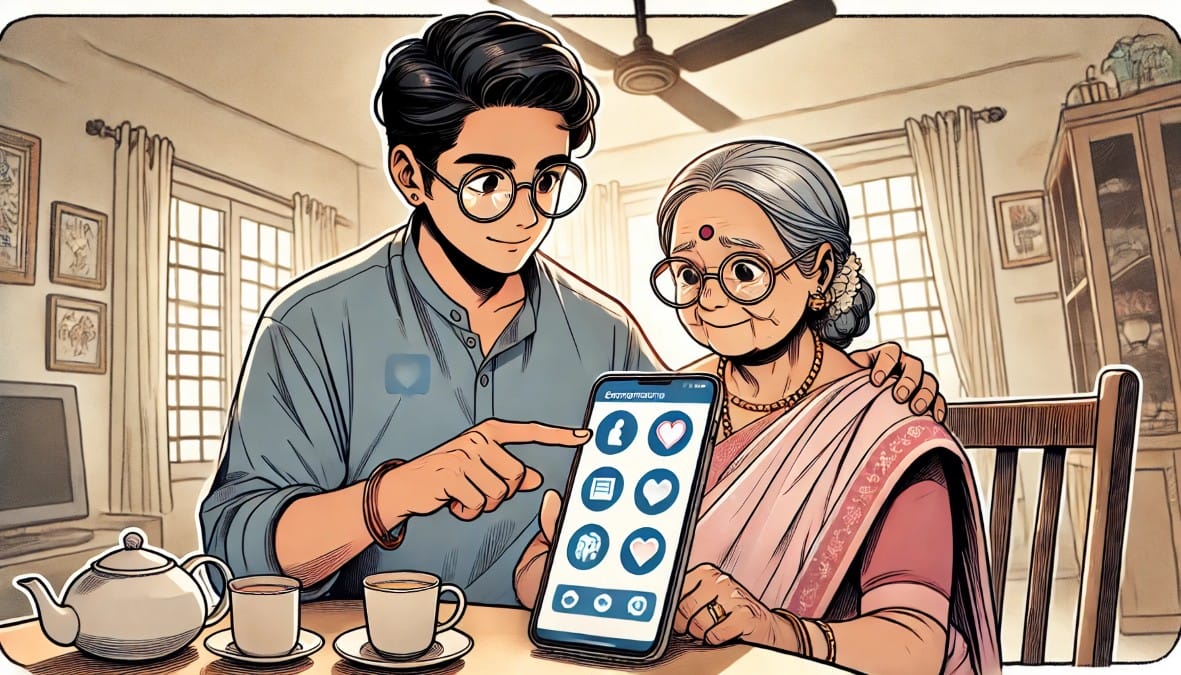
If you’re setting up a phone for your mother, father, grandparents or anyone who finds smartphones confusing the real goal is comfort and clarity.
That means:
- No tiny text they can’t read
- No 10-app maze just to make a call
- No confusing gestures or pop-ups
- No sudden layout changes that cause panic
You don’t need a new phone or any “senior app.” All you need is to tweak some settings that already exist.
This post shows you how to make any Android phone simpler, louder, easier to read, and safe for elders or people with poor vision or hearing.
1. Make Everything Bigger and Easier to See
Elders often say:
“I can’t see the names or read messages without glasses.”
That’s usually because the phone is using the default (small) text and layout.
How to fix:
- Settings → Display → Font Size → Set to Large or Extra Large
- Settings → Display → Display Size / Screen Zoom → Increase this too
Don’t choose custom fonts or themes with curly or thin fonts — they make reading harder.
Result:
The SMS inbox, WhatsApp chats, and contact names will appear clearly. No more eye strain or squinting.
2. Clean Up the Home Screen – Remove Clutter
Elders get overwhelmed if they have to swipe through 3 pages of apps or folders.
How to help:
- Long-press and remove any apps they don’t use from the home screen
- Keep just 6–8 icons: Phone, Contacts, SMS, WhatsApp, Photos, YouTube, Camera
- Disable or hide extra pages/screens
- If folders confuse them, remove those too
Tip: Some phones like Samsung have “Easy Mode” a bigger, simplified layout under
Settings → Display → Easy Mode
Result:
One-screen access. No confusion. Tap-and-go usage.
3. Switch to Button Navigation (No Swipes)
Swipe gestures are hard to explain. Many elders accidentally close apps or open recent apps without meaning to.
Fix it like this:
- Settings → System → Gestures → System Navigation
- Choose “3-button navigation”
What it does:
Brings back the simple Back, Home, and Recent buttons on screen.
Result:
No more accidental swipes. Clear, consistent navigation.
4. Turn On Dark Mode or High Contrast (Optional)
Some elders prefer white backgrounds, others find them too bright.
Try both and ask what feels better:
- Settings → Display → Dark Mode / Dark Theme → ON
- Settings → Accessibility → High Contrast Text → ON
Result:
Reduced eye strain, especially in low-light or nighttime.
5. Increase Volume and Choose the Right Ringtone
Most elders miss calls because the ringtone is too soft or similar to music.
How to help:
- Settings → Sound → Increase call volume, media volume, and alarm
- Select a ringtone that’s loud and clear — not soft or complex music
- Turn on vibration + sound if possible
- Enable Flash for calls (on some models) for extra visibility
Extra help:
If hearing is weak, enable Settings → Accessibility → Sound Amplifier or
Use Hearing Aid Compatibility if supported.
Result:
They’ll notice incoming calls even in noisy areas or when not holding the phone.
6. Add Emergency Info on Lock Screen
If your parent ever loses the phone, or has a health emergency, the lock screen is where help can start.
How to add:
- Settings → Lock Screen → Lock screen message
- Add: “Emergency: Call Son – 98765xxxxx or 102 Ambulance”
Some phones also support:
Settings → Safety & Emergency → Add Emergency Contacts or Medical Info
Result:
Essential info visible without unlocking the phone.
7. Disable Unwanted Notifications (To Avoid Confusion)
Shopping apps, news apps, browsers — all send unwanted alerts like:
- “Get ₹3000 loan now”
- “You’ve won a prize”
- “Tap to play a game!”
How to stop them:
- Settings → Apps → [App] → Notifications → OFF
(Do this for browser, MyJio, ShareChat, shopping, or finance apps)
Result:
No risky pop-ups. Less chance of tapping scams or junk content.
8. Prevent Sudden Layout Changes (Update Controls)
Elders get frustrated when icons move or the layout changes suddenly after a system update.
What to do:
- Settings → System → System Update → Turn off auto-download (if available)
- Play Store → Settings → Auto-update apps → Wi-Fi only
Result:
No surprise updates. The phone layout stays familiar.
9. Use Guest Mode When Needed (For Safety)
If other people borrow their phone like helpers or shopkeepers they shouldn’t access photos or chats.
How to use:
- Swipe down the notification bar
- Tap user icon → Switch to Guest Mode
Turn on Guest Mode via:
Settings → System → Multiple Users → Enable
Result:
The phone shows only basic apps. Nothing personal can be accessed.
10. Set Up Voice Input and Indian Language Typing (Optional)
If elders struggle with typing:
- Use Voice typing (tap the mic on keyboard)
- Add regional language input:
- Settings → Languages & Input → Add Hindi/Tamil/Marathi/etc.
- Enable transliteration keyboard if they prefer Hindi typing using English letters
Example:
Say: “Send message to Gita” → phone types and sends automatically in Hindi.
Result:
Faster, hands-free usage for everyday actions.
11. Create Direct Call Shortcuts for Family
Make it easy to call loved ones in one tap.
How:
- Long press on a contact → Tap “Add to Home Screen”
- Or use Contacts app → Menu → Add shortcut
You can also add:
- WhatsApp call shortcut
- Video call shortcut
Result:
Mom or Dad can call you with just one tap — no searching or typing.
Final Summary – Turn Any Android Phone Into a Senior-Friendly Device
Smartphones weren’t designed for elders but they can be made friendly.
You don’t need a special phone. You don’t need a “senior mode” app. You just need:
- Clear fonts
- Loud sound
- Simple layout
- No distractions
- Safety built in
Once that’s done, your parent or grandparent won’t need to ask for help every time.
They’ll use the phone confidently and you’ll feel relieved too.

