
How to Prevent Laptop Heating Issues in India’s Summer
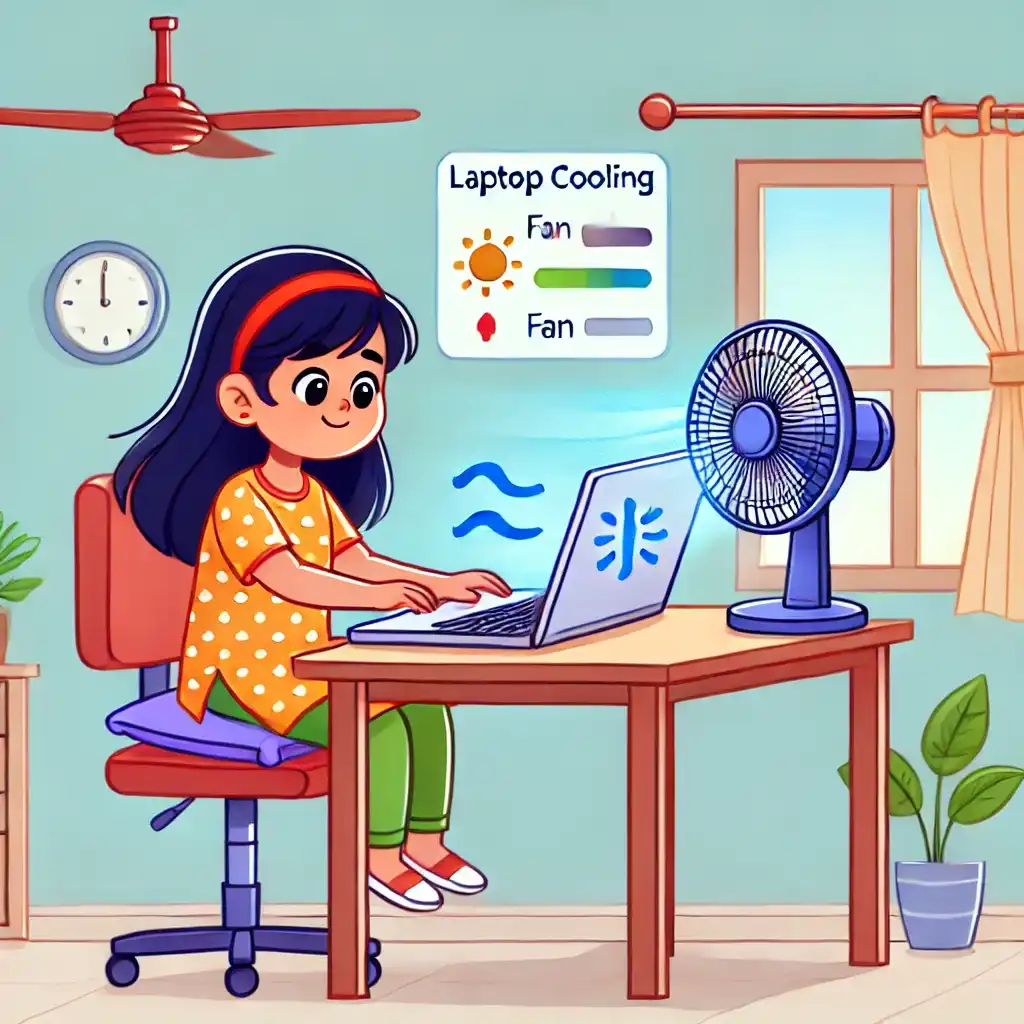
Is your laptop getting too hot while working, gaming, or streaming videos? Overheating is a common issue in India due to high ambient temperatures, dust buildup, and poor ventilation—especially in non-AC environments. If left unchecked, overheating can slow down your laptop, cause performance lag, force shutdowns, and even damage internal components.
With a few simple adjustments, you can reduce heat buildup, improve airflow, and prevent long-term damage—all without spending on expensive cooling accessories. Whether you’re using a work laptop, gaming machine, or an entry-level device, this guide will show you how to keep your laptop cool in India’s challenging climate.
1. Why Laptop Overheating is a Major Issue in India
- Indian summers can reach 40-50°C, making cooling less effective.
- High dust levels block laptop air vents, reducing heat dissipation.
- Power fluctuations and prolonged usage strain the laptop’s cooling system.
A hot laptop slows down, shuts down unexpectedly, and damages internal components.
2. Is Your Laptop Overheating or Just Warm?
Many laptops naturally feel warm after long usage, but true overheating causes performance issues.
Safe vs. Overheating Temperature Ranges
| Component | Normal Temp Range | Danger Zone (Overheating) |
|---|---|---|
| CPU (Processor) | 40-85°C | 90°C+ (Risk of shutdown) |
| GPU (Graphics Card) | 40-75°C | 85°C+ (Thermal throttling) |
| SSD/HDD (Storage) | 30-50°C | 60°C+ (May cause data loss) |
| Battery | 30-45°C | 50°C+ (Reduces lifespan) |
- If your laptop stays within normal temp ranges, it is not overheating.
- If temps exceed the danger zone, your laptop needs immediate cooling solutions.
3. How to Prevent Overheating: Best Cooling Practices
A. Keep the Laptop on a Hard, Flat Surface
- Never use your laptop on beds, pillows, or soft surfaces (blocks airflow).
- Use a cooling pad (brands like Deepcool, Cosmic Byte) for better ventilation.
- For gaming laptops, use an adjustable laptop stand to improve airflow.
B. Clean Laptop Air Vents and Fans Regularly
- Dust blocks airflow, leading to heat buildup.
- How to clean vents: Use compressed air or a soft brush every 2-3 months.
- For sealed laptops: Use a vacuum near vents to remove dust.
- If overheating persists, clean the internal fan (recommended every 6-12 months).
C. Optimize Laptop Performance to Reduce Heat Generation
- Use Battery Saver Mode when doing light tasks.
- Close unnecessary apps & background processes (Chrome, Adobe, OneDrive).
- Reduce FPS in games – Lowering refresh rate reduces GPU heat.
- Switch to Edge or Firefox instead of Chrome (Chrome consumes more CPU).
D. Improve Ventilation and Airflow
- Keep at least 5 cm of space around the laptop for proper airflow.
- Use an external cooling fan or an elevated stand to improve ventilation.
- For gaming laptops: Set fans to maximum speed in BIOS for better cooling.
E. Reapply Thermal Paste (For Old Laptops & Gaming Laptops)
Thermal paste dries out after 2-3 years, reducing cooling efficiency. Reapply
- If CPU temps exceed 90°C frequently.
- If cooling fans run at full speed constantly.
- If laptop suddenly shuts down under heavy load.
- Best thermal pastes for gaming laptops: Arctic MX-6, Noctua NT-H2.
4. Software Solutions to Control Overheating
- ThrottleStop or Intel XTU: Undervolt the CPU for lower temps.
- MSI Afterburner: Adjust GPU power limits for gaming laptops.
- Laptop brand utilities: HP CoolSense, Lenovo Vantage, ASUS Armoury Crate allow cooling adjustments.
- Turn off Turbo Boost in BIOS – Reduces excessive CPU heating in daily use.
5. Common Myths vs. Facts About Laptop Overheating
- Myth: Keeping a laptop in an AC room prevents overheating.
- Fact: AC helps, but blocked vents & dust buildup still cause overheating.
- Myth: Overheating is normal for gaming laptops.
- Fact: While gaming laptops run hotter, temps above 95°C indicate a cooling issue.
- Myth: Cooling pads fix overheating completely.
- Fact: Cooling pads help but cannot fix internal dust blockages.
- Myth: High fan speed means better cooling.
- Fact: If fans are constantly loud, the laptop is struggling to cool itself.
6. Conclusion: Keep Your Laptop Cool & Running Smoothly
- Laptop running too hot? Clean dust buildup, improve ventilation, and check fan performance for better cooling.
- Experiencing sudden shutdowns? Overheating can trigger thermal throttling—use a cooling pad or elevate your laptop for better airflow.
- Gaming laptop overheating? Optimize fan speed settings, reduce graphics load, and apply new thermal paste to keep temperatures in check.
- Working in hot conditions? Avoid direct sunlight, use balanced power mode, and lower CPU usage to reduce heat generation.
- Laptop too hot to touch? If overheating persists, consider servicing the cooling system or replacing thermal paste for long-term temperature control.
Laptop overheating is a major issue in India’s climate, but with the right cooling strategies, you can prevent slowdowns, extend battery life, and ensure long-term performance. Follow these steps to keep your laptop cool, fast, and efficient, even in the hottest weather!

