
Easy Laptop Battery Health Check for Windows, macOS, and Linux
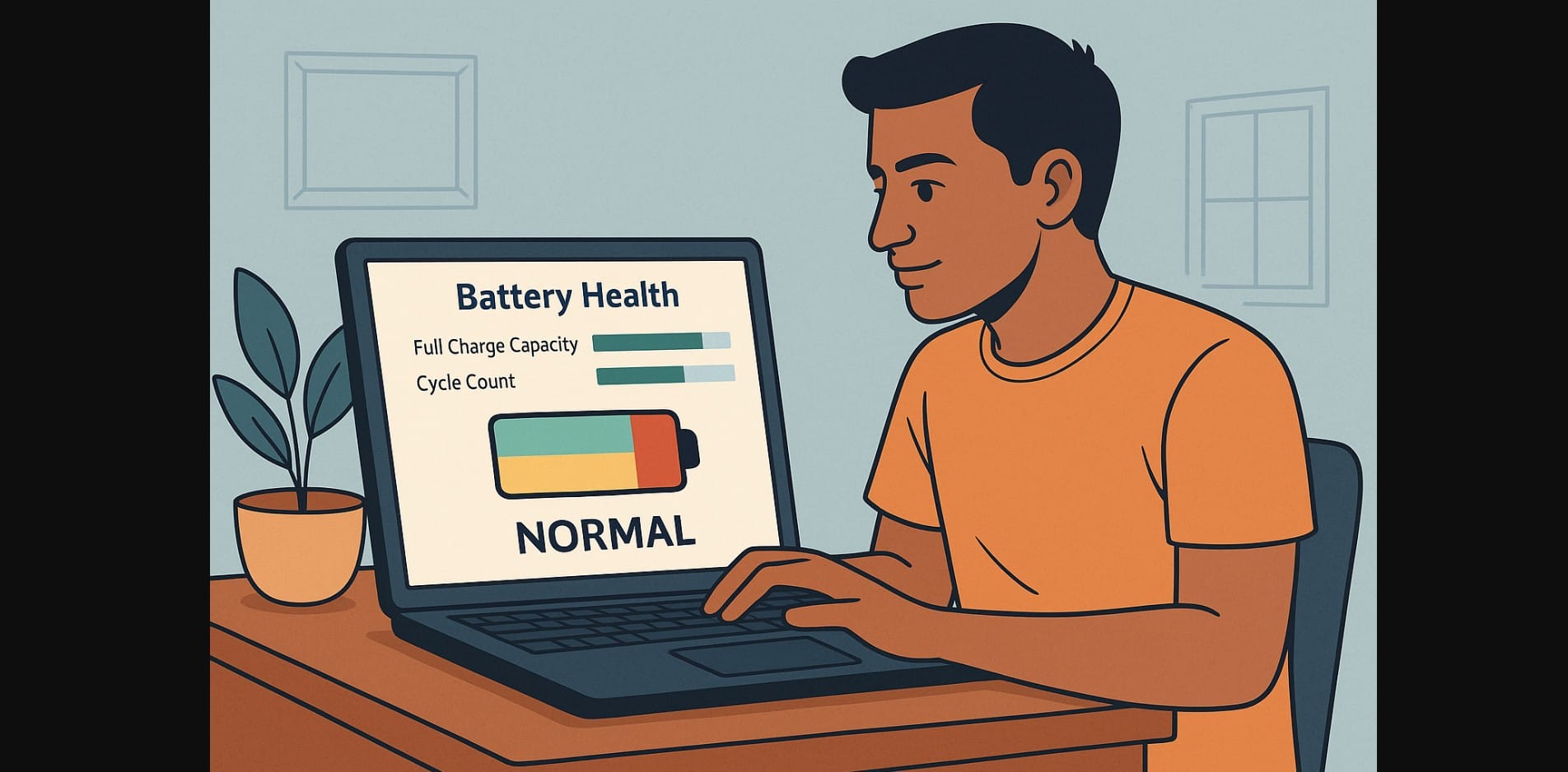
Most Indian users don’t notice their laptop battery is failing until the damage is already done. Even if your battery shows “100% charged,” that number means very little without knowing how much charge it actually holds. A battery that once gave you 5 hours might now give only 2 but the system won’t tell you that unless you check the actual health.
Laptop batteries wear out faster when exposed to continuous heat. Indian homes without air conditioning, frequent power cuts, and daily plug-in habits all contribute to early degradation. If you never check the health of your battery, you’re more likely to experience failure during travel, classes, meetings, or exams.
1. How to Check Laptop Battery Health on Windows, macOS, and Linux
Use Windows Battery Report to Check Design vs. Full Charge Capacity
For Windows users, open Command Prompt and run:
bash
CopyEdit
powercfg /batteryreport
It generates a full battery health report in HTML format. Look at:
- Design Capacity: What the battery could originally hold
- Full Charge Capacity: What it holds now
- Cycle Count: Number of full charging cycles completed
If your full charge capacity is under 70% of the design capacity, your battery is significantly degraded.
macOS Users Can Check Cycle Count and Health from System Information
Go to:
Apple Menu > About This Mac > System Report > Power
There, you’ll find:
- Cycle Count
- Battery Condition (Normal, Replace Soon, or Service Battery)
- Full charge vs. design capacity
macOS laptops typically handle battery health better but still require monitoring.
Linux Users Can Use upower or acpi to Check Battery Details
Use this command in terminal:
bash
CopyEdit
upower -i /org/freedesktop/UPower/devices/battery_BAT0
Or use:
nginx
CopyEdit
acpi -V
Look for metrics like energy-full, energy-original, and cycle count. You can track degradation by comparing these values over time.
2. What Your Laptop Battery Report Is Telling You (and What to Watch)
Cycle Count Indicates Overall Battery Age
Most lithium-ion laptop batteries are designed to last 400-500 full cycles. If your cycle count is above 300 and your full charge capacity is dropping quickly, that’s a clear sign that your battery is nearing the end of its life.
Design Capacity vs. Full Charge Capacity Reveals Battery Wear
For example:
- Design Capacity: 50,000 mWh
- Full Charge Capacity: 31,000 mWh
That means your battery is operating at only 62% of its original ability you’ve likely lost 1-2 hours of backup already.
Charging Status and Usage History Show Real-Time Efficiency
Battery reports also include usage graphs and charging history. You can spot if the battery is draining too fast during simple tasks often a sign of background processes or hardware strain.
3. Everyday Maintenance Habits That Help Preserve Laptop Battery Health
Avoid Constant Full Charging Set a Battery Limit at 80% if Possible
If you keep your laptop plugged in all day, the battery stays under full stress. Many Indian users don’t realize this damages cells over time. Brands like:
- Lenovo: Use Lenovo Vantage
- Dell: Use Dell Power Manager
- ASUS: Use Battery Health Charging
- HP: Use HP Support Assistant
These tools allow you to cap charging at 80% to reduce wear.
Use Your Laptop on Battery Regularly to Keep Cells Active
Batteries work better when used. If you never use your laptop on battery, the cells may become unbalanced or lose responsiveness. Let your battery drain to 40-50% a few times a week before charging again.
Keep Battery Temperature Low with Proper Airflow or Cooling Pads
Internal battery heat above 40°C can cause faster chemical breakdown. In Indian homes where ceiling fans or AC may not always run, using a basic ₹300-₹500 laptop stand or cooling pad can keep temperatures in check.
4. Signs Your Laptop Battery Health Is Deteriorating
Battery Drops 40-50% Within an Hour of Use
If your battery drains rapidly even on light use (e.g., browsing, typing), this often means significant capacity loss. Even if it reports 100% charged, the actual storage might be much lower.
Laptop Heats Up During Charging or Simple Tasks
Overheating during basic work is a red flag either your battery is under stress, or your thermal system isn’t dissipating heat properly.
Bulging Under the Touchpad or Laptop Base = Swollen Battery
A swollen battery is dangerous. It can damage the trackpad or even cause internal pressure on the motherboard. If you see or feel this, stop using the laptop immediately and get it checked.
5. When to Replace Your Laptop Battery Based on Health Report
Below 60% Capacity = Consider Replacement for Regular Use
A battery that only holds 50-60% of its original capacity will cause frequent disruptions in your daily work. Replacing it can restore 2-3 hours of lost battery life.
Swollen Batteries Require Immediate Replacement
Even if the laptop still turns on, swollen batteries pose a risk of fire, data loss, and internal damage. Do not delay.
Always Choose OEM or Certified Laptop Batteries in India
Generic third-party batteries are often cheaper but come with risks inaccurate health readings, poor lifespan, and lack of protection circuits. Stick to original or brand-authorized replacements.
6. Checking Battery Health Regularly
Most users in India don’t check their laptop battery health until it’s too late. But with one simple command or settings check every month, you can keep your battery in good shape and avoid sudden failures.
By combining regular health monitoring with smarter charging and temperature control, your laptop battery can easily last 1-2 years longer without spending anything.

