
First-Time Smartwatch Setup India – Connect, Sync, Configure
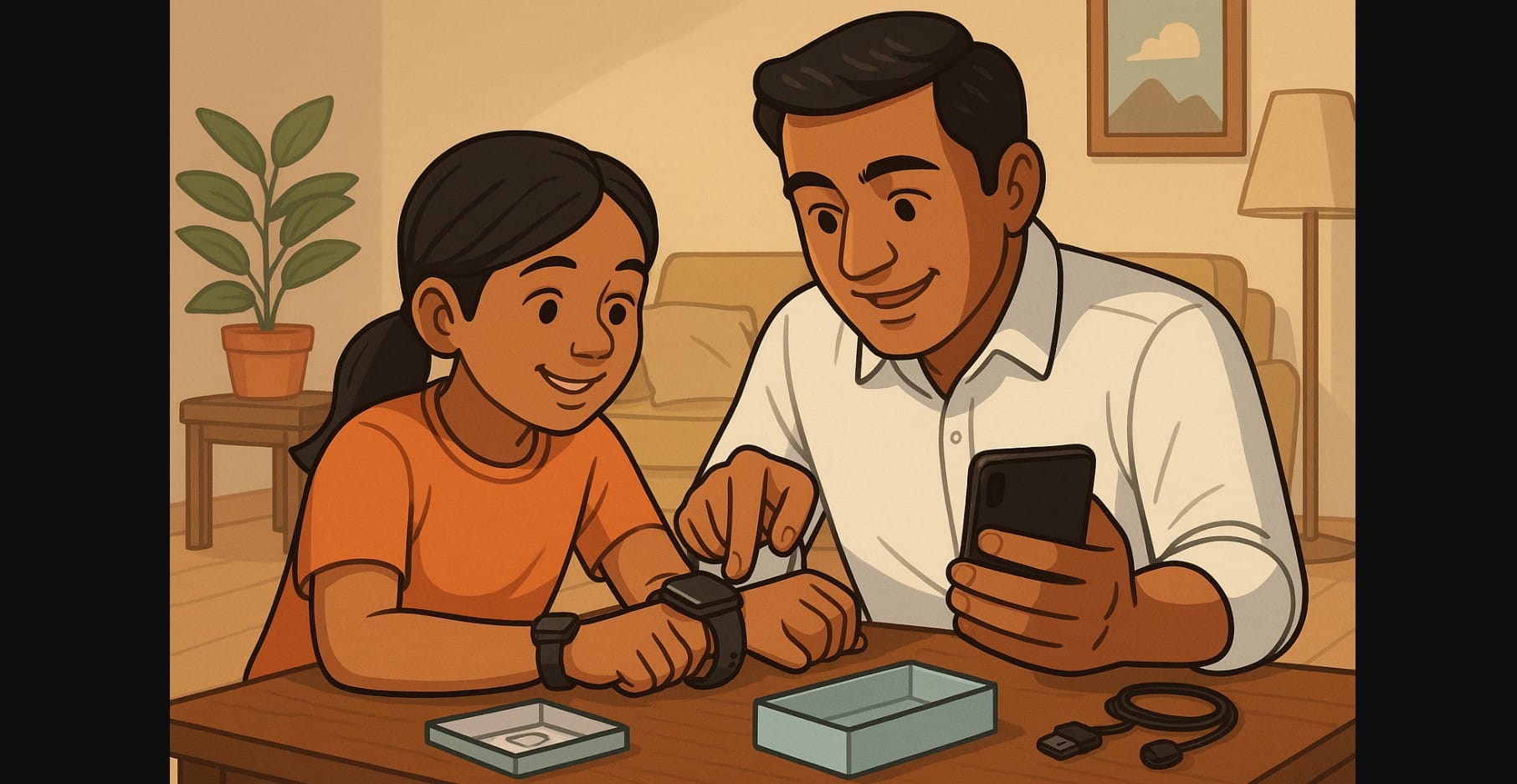
Whether you’ve just bought your first smartwatch online or received one as a gift, setting it up for the first time can be confusing especially if you’re not sure where to start. This guide is written for Indian users who want a smooth, frustration-free setup that gets their watch working correctly from Day 1.
We’ll cover the entire process using a universal method that works across most popular Indian smartwatch brands like Noise, Fire-Boltt, boAt, Amazfit, Fastrack, and more.
1. Smartwatch Unboxing and Charging: Start With the Basics
Open the Smartwatch box and you’ll usually find:
- The watch itself (straps may be pre-attached)
- A magnetic charger
- QR code card or warranty slip
- A small manual
Before you begin:
- Charge the watch fully (1.5-2 hours for first-time use)
- Use the original charger and a stable USB adapter
- Avoid laptop USB ports or power banks to prevent unstable charging
- Some watches vibrate or light up once charging starts confirm it’s working
2. Choose the Right Smartwatch App Before You Pair Anything
Most brands in India use their own companion apps. Download them from Google Play or the App Store not from APK sites.
| Brand | Companion App |
|---|---|
| Noise | NoiseFit / NoiseFit Life |
| boAt | boAt Crest |
| Fire-Boltt | Da Fit / FitCloudPro |
| Amazfit | Zepp |
| Fastrack | Fastrack Reflex World |
| Samsung | Galaxy Wearable |
| Apple | Watch app (iPhone built-in) |
If your box has a QR code, scan it to be sure you’re downloading the exact app version for your model.
3. Allow Phone Permissions Before You Start Pairing
Open the app and allow:
- Bluetooth access (mandatory for pairing)
- Location access (needed for weather and initial sync)
- Physical activity permission (to record steps and health data)
Also, enable mobile data or Wi-Fi during setup for app registration and firmware updates.
4. Pair the Watch the Right Way (Skip Phone Bluetooth Settings)
Here’s a common mistake: many users go to their phone’s Bluetooth settings first. Don’t.
Instead:
- Open the smartwatch app
- Tap “Add Device” or “Pair New Watch”
- Select your watch name when it appears
- Confirm the pairing code if shown
Some watches require dual Bluetooth connections (one for the app, one for audio). Follow in-app steps carefully if using a BT calling watch.
5. Complete the Smartwatch Firmware Update If Prompted
After pairing, your watch may ask for a software update.
- Keep it on the charger during the update
- The process usually takes 5-10 minutes
- Don’t switch off your phone or force close the app
Skipping updates may cause syncing issues or missing features.
6. Set the Watch to Match Your Lifestyle
Once your watch is paired and powered, configure these basics:
- Language and unit preferences (e.g., °C, km, 12/24hr)
- Watch face – select from preloaded or cloud options
- Brightness – reduce to 40-60% for indoor use
- Raise-to-wake – enable if you want the screen to turn on with wrist motion
- Vibration intensity – adjust to suit your comfort
7. Enable or Disable Smartwatch Health Tracking Features
By default, most smartwatches track everything steps, heart rate, SpO₂, sleep, etc. But you can control how often they track:
- Heart Rate Monitoring – continuous (more accurate) or timed
- SpO₂ Tracking – on-demand or overnight only
- Sleep Tracking – make sure it’s enabled for auto-detection
- Stress and Breathe Modes – can be turned off to save battery
You’ll find these in the “Health Monitoring” or “Wellness” section of your app.
8. Add Personal Info to Improve Accuracy
Your watch needs basic health data to track you accurately. Fill in:
- Age
- Gender
- Height and Weight
- Step goal and sleep target
This data helps calculate calories burned, sleep analysis, and heart rate zones.
9. Sync Contacts If Your Smartwatch Supports Calling
If you bought a calling-enabled watch:
- Go to the app’s Call Settings
- Select “Sync Contacts” or “Add Favorites”
- Choose 10-20 frequent contacts to save on the watch
- Enable microphone and call permissions on your phone when asked
Note: Calling watches often need two active Bluetooth connections to work properly.
10. Check If Everything Works Before Wearing It All Day
Before heading out:
- Walk 20-30 steps and check if the step count increases
- Tap “Measure Heart Rate” and wait for a reading
- Send a WhatsApp message to test notifications
- Lift your wrist and check if the screen turns on
- Try a quick 30-second workout or timer as a test
This early check helps avoid panic if something doesn’t respond later.
11. Fixes for Sync and Sensor Issues
Notifications not showing?
- Go to your phone’s battery settings
- Set the smartwatch app to “Unrestricted” or “Don’t optimize”
- Make sure DND mode is not active on your phone or watch
Sensors not responding?
- Remove any protective plastic covering the sensor
- Make sure the strap is snug not loose or sliding
- Clean the sensor with a dry, soft cloth before retrying
BT Calling not working?
- Ensure two Bluetooth connections are shown in your phone’s paired list
- Re-enable call, contact, and mic access in the app
12. Easy Customizations That Make the Watch More Useful
Once things are running, here are a few small tweaks that improve daily use:
- Enable scheduled DND at night so notifications don’t wake you
- Choose a watch face that highlights what you care about (steps, time, weather, etc.)
- Set up daily reminders or hydration alerts through the app
- Add shortcuts or widgets (on supported watches) for quick access to workouts or breathing exercises
13. Smartwatch Setup Is Done Now Use It Right
Once paired and configured, your smartwatch becomes more than a timepiece. It helps you:
- Stay active and monitor trends
- Manage calls and messages more efficiently
- Sleep more consistently
- Build long-term habits
Just remember check the app regularly, clean your watch weekly, and charge before 10% battery to avoid shutdowns during sync.

