
Smart Display Settings for Indian Users Who Work or Study All Day
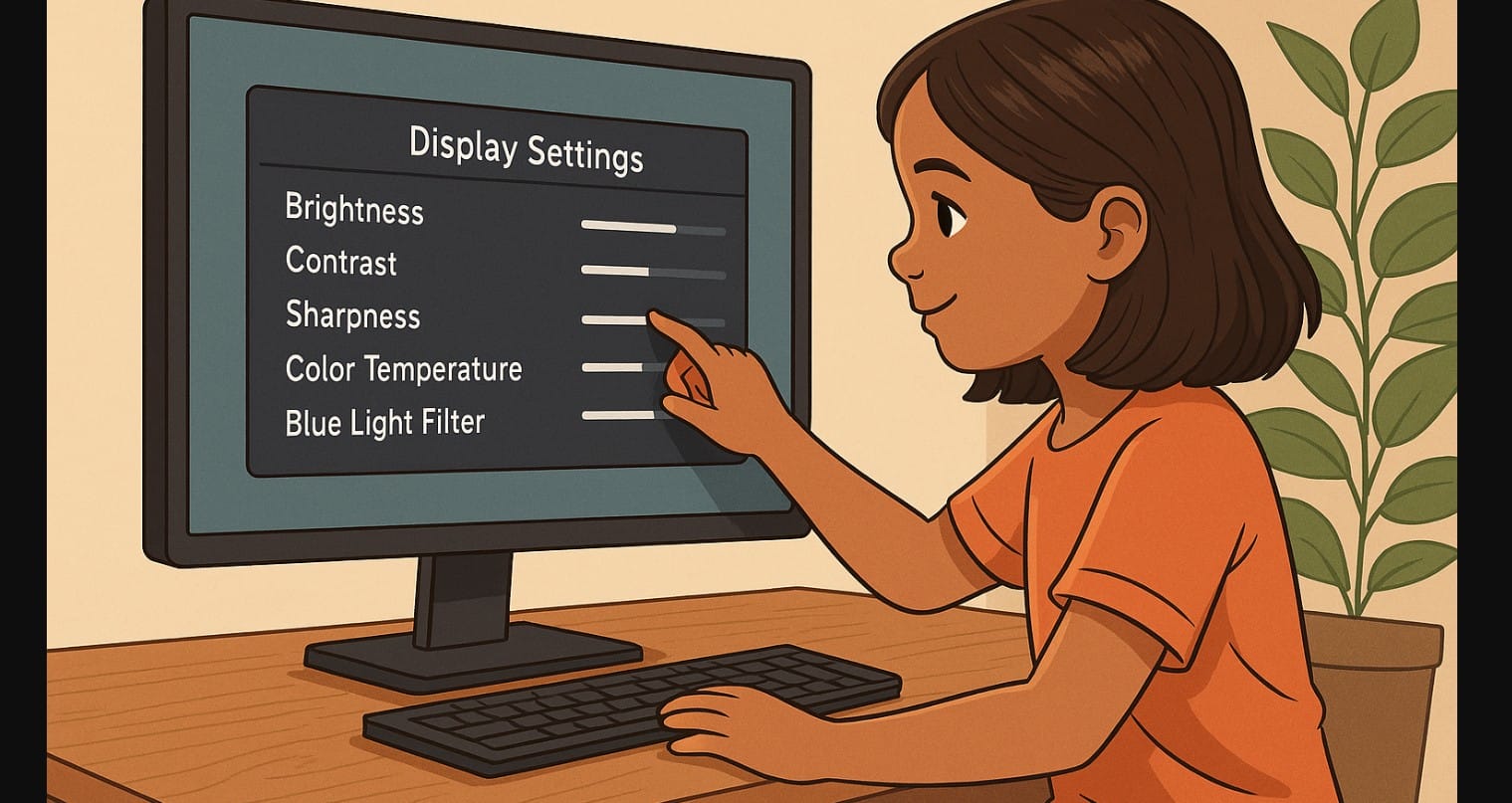
The moment you power on a new monitor, it looks crisp and sharp. But if you’re spending hours working, studying, watching videos, or gaming, those factory settings won’t feel right for long especially in Indian homes with mixed lighting and longer screen time.
This guide shows you how to tweak your display settings for better comfort, clarity, and eye health, no matter where or how you use your screen.
1. Why Your Monitor’s Settings Deserve a Few Minutes
Most people never change the default settings and end up with:
- Dry eyes after 2-3 hours
- Washed-out or overly bright images
- Glare or visual fatigue at night
- Incorrect color tone during photo editing or video playback
Customizing your display takes just a few minutes and helps avoid those daily discomforts.
2. Get to Know the Key Monitor Settings
Open your monitor’s on-screen display (OSD) usually accessible via buttons on the bottom or back of the screen. These are the settings worth understanding:
- Brightness: How much light your screen emits. Too much = eye strain, too little = blurry details
- Contrast: Difference between bright and dark areas. Higher isn’t always better
- Sharpness: Controls edge clarity too high looks artificial
- Color Temperature: “Cool” (bluish), “Warm” (yellowish), “Neutral” (balanced)
- Picture Modes: Often labeled as Game, Movie, Reader, Custom
- Blue Light Filter / Eye Saver Mode: Reduces high-energy blue light during late use
2. Adjust Settings Based on How and When You Use Your Monitor
For Work or Study (Daylight)
- Brightness: 70-80%
- Contrast: 60-70%
- Color Temp: Neutral or Cool
- Eye Saver Mode: Off (natural light reduces strain)
For Night Use (Dim or No Room Light)
- Brightness: 30-40%
- Color Temp: Warm
- Eye Saver Mode: ON
- Picture Mode: Reader or Custom
For Watching Movies or OTT
- Contrast: 80-90%
- Sharpness: Medium
- Picture Mode: Movie or Cinema
- Dynamic Contrast: Optional (may improve visuals, but flickers on cheap models)
For Gaming
- Response Boost / Low Input Lag: ON
- Brightness: 60-70%
- Contrast: 60%
- Picture Mode: Game
- Color Temp: Neutral
3. OS-Level Display Settings You Shouldn’t Ignore
On Windows:
- Right-click > Display settings
- Set scale to 100-125% for better readability
- Set refresh rate (under Advanced Display Settings) often defaults to 60Hz even if your monitor supports more
- Enable Night Light and schedule it for evenings
On macOS:
- System Settings > Displays
- Choose “More Space” for better multitasking
- Enable Night Shift for warmer tones after sunset
4. Practical Settings for Indian Conditions
- If you sit near a balcony or window, avoid facing the screen directly toward sunlight
- If you use your monitor on inverter power, slightly reduce brightness to avoid flicker
- Cool color modes feel better under white LED or CFL lights
- Warm modes are easier on the eyes under yellow or low lighting
- Clean your screen with a microfiber cloth regularly dust reduces contrast and sharpness
5. Things to Avoid While Tuning Your Display
- Don’t use 100% brightness all day it shortens panel life and strains your eyes
- Avoid very high sharpness makes fonts and lines look unnaturally harsh
- Don’t leave Dynamic Contrast on permanently it shifts too much during regular use
- Don’t forget to save your custom profile if your monitor allows it easy to switch when you change use cases
6. Your Eye Comfort Is Just a Few Clicks Away
Every monitor is different and so is every room, every desk, and every day. The default settings may look “okay,” but your eyes and brain will thank you if you fine-tune it to your environment.
Take 10-15 minutes today to create your ideal setup. It’s a one-time effort that will improve your comfort, your posture, and even your sleep especially if you use your monitor late into the night.

