
Smartwatch Problems and Real Fixes – Bluetooth Drops, Screen Lag, No Sleep Data?
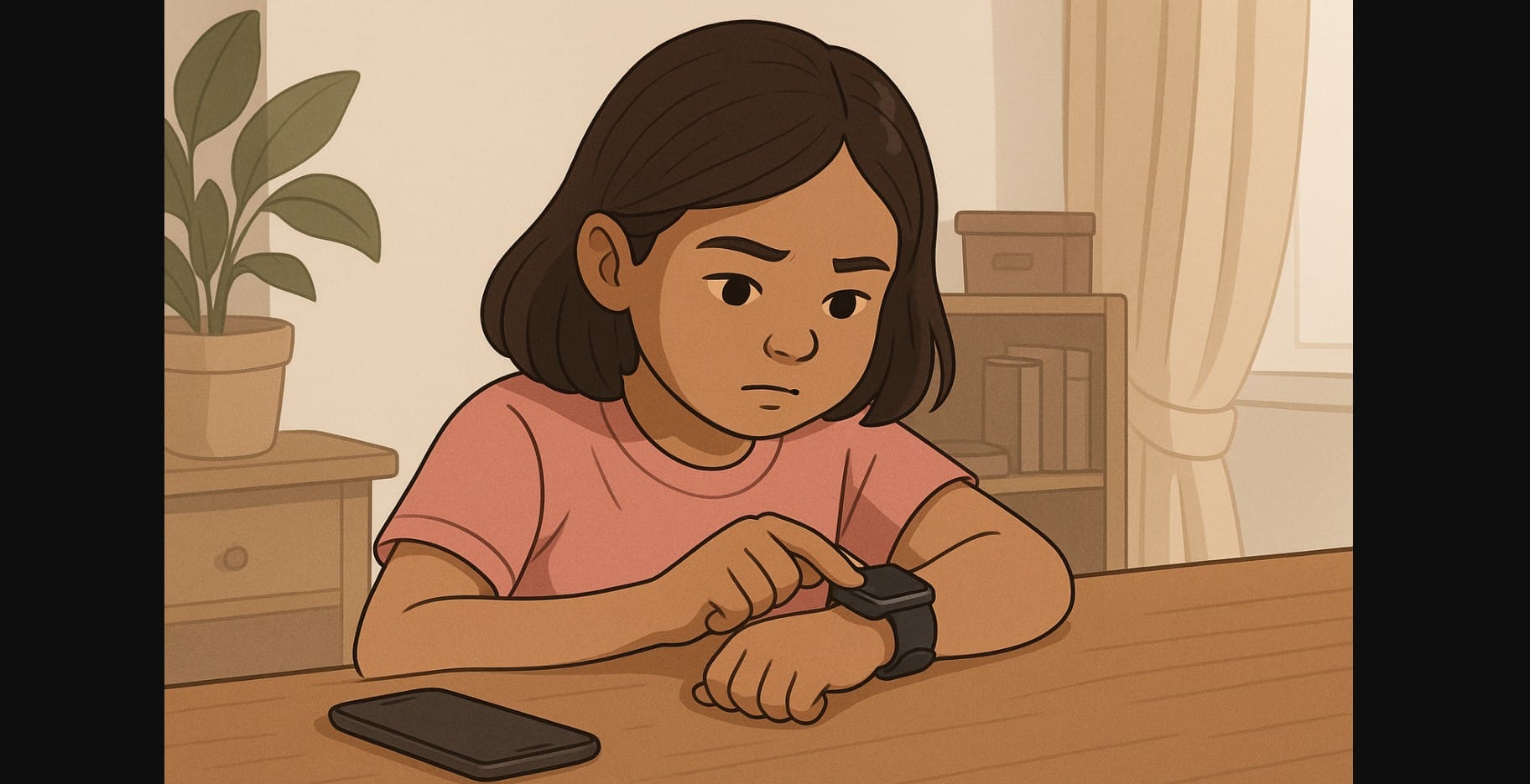
Smartwatches are convenient until they stop syncing, drain battery too fast, or just won’t show your WhatsApp notifications. Many Indian users face these issues daily, especially on budget and mid-range watches. This guide walks you through easy-to-follow solutions for common problems without needing service center visits or complicated steps.
1. Bluetooth Keeps Disconnecting or Won’t Pair
If your Smartwatch keeps losing connection or refuses to pair:
- Battery saver is blocking Bluetooth or the app
- Companion app is closed in the background
- Too many other Bluetooth devices paired
- You walked too far from your phone, breaking the sync
Fix:
- Unpair and re-pair the watch using the companion app (not just phone Bluetooth settings)
- On Android, go to App Info > Battery > set to “Unrestricted” for the watch app
- Keep phone and watch within 1-2 meters while pairing
- Clear Bluetooth cache (Settings > Apps > Show system > Bluetooth > Storage > Clear cache)
2. Phone Notifications Not Showing or Coming Late
You’re missing calls or not getting WhatsApp alerts?
- App permissions not granted
- Phone is in DND mode or Battery Saver
- Watch app is killed in the background
Fix:
- Open the companion app (e.g., NoiseFit, Zepp, boAt Hub)
- Go to Notification Settings and enable all app toggles
- On Android, go to Settings > Battery > turn off optimization for the app
- Make sure phone Bluetooth is always on, and the watch is not muted
3. Smartwatch Battery Drains Too Quickly
Your battery is running out in 1-2 days? That’s not normal on most non-Wear OS watches.
What Causes It:
- Always-on display is active
- Continuous tracking is enabled for heart rate, SpO2, or stress
- Too many notifications or high screen brightness
- Calling mode is running in the background
Fix:
- Reduce screen brightness and turn off always-on mode
- Use manual HR checks instead of 24×7 monitoring if not needed
- Switch to DND during sleep hours
- Limit vibration feedback for minor alerts
4. Steps or Sleep Data Not Logging Properly
If your watch shows 0 steps or no sleep data:
Possible Reasons:
- You’re wearing it too loose
- It hasn’t synced yet
- You’re lying still but not actually sleeping (scrolling at night)
Quick Fixes:
- Wear the watch snugly above your wrist bone
- Sync with the companion app first thing in the morning
- Don’t rely on nap data it’s often not logged unless the watch supports short sleep tracking
- Clean the sensor area regularly
5. Watch Not Syncing with the App
Your watch works but the app shows no updates?
- Bluetooth is active but disconnected
- App is stuck or background-restricted
- Permissions were denied by mistake
Solutions:
- Restart both phone and watch
- Open the app manually and trigger sync
- On Android, go to App Info > Permissions > enable Physical Activity, Bluetooth, and Location
- Update the app from the Play Store or App Store
6. Time or Date Showing Incorrectly
Time jumps randomly or doesn’t match your phone?
Fix:
- Open the companion app and trigger a manual sync
- Set your phone’s time zone to automatic
- If using a dual-SIM phone, make sure the SIM with internet access is active
7. App Dashboard Shows Blank or Outdated Data
Graphs missing? Sleep and step data not showing?
What You Can Try:
- Check for app updates first
- Re-login to the app and re-sync your watch
- On Android, go to App Info > Storage > Clear cache (not data)
- If using a cloned app (dual app mode), use the original version instead
8. Smart Watch Freezes or Randomly Restarts
This is often a firmware or memory glitch.
How to Resolve:
- Long-press power or side button to restart
- Remove unused watch faces or widgets
- Avoid enabling all tracking features at once
- If the issue repeats:
- Factory reset the watch from its settings
- Re-pair using a clean app install
9. Smart Watch Touchscreen Feels Unresponsive or Laggy
If taps don’t register properly or swipe gestures lag:
- Dust or sweat on the screen
- Cheap screen protector causing sensitivity issues
- Too many apps or animations loaded
Try This:
- Clean with a microfiber cloth
- Remove any thick or ill-fitted screen protector
- Restart the watch to clear memory
- Choose a lighter watch face (static instead of animated)
10. When You Should Try a Factory Reset
If multiple issues continue despite troubleshooting:
- Go to watch settings > Reset > Confirm
- After reset, open the app and pair as a new device
- Syncing history may be lost unless your brand supports cloud backup
Factory reset is helpful after updates, firmware crashes, or heavy usage.
11. When It’s Time to Use the Smartwatch Warranty
Some issues are hardware-related and won’t be fixed with settings:
- Charging port is damaged
- Watch won’t turn on even after full charge
- Screen cracked or sensor lens fogged
- Water damage despite rated resistance
Most Indian brands offer 6-12 months warranty. To get service:
- Keep your purchase invoice
- Contact support via the official companion app or website
- Avoid using third-party repair unless warranty has expired
Many smartwatch issues in India come down to app settings, Bluetooth restrictions, or battery optimization features. Most of these problems can be fixed without visiting a technician just by knowing where to look.

