
Xbox Screen Recording: How to Save and Share Your Best Gaming Moments
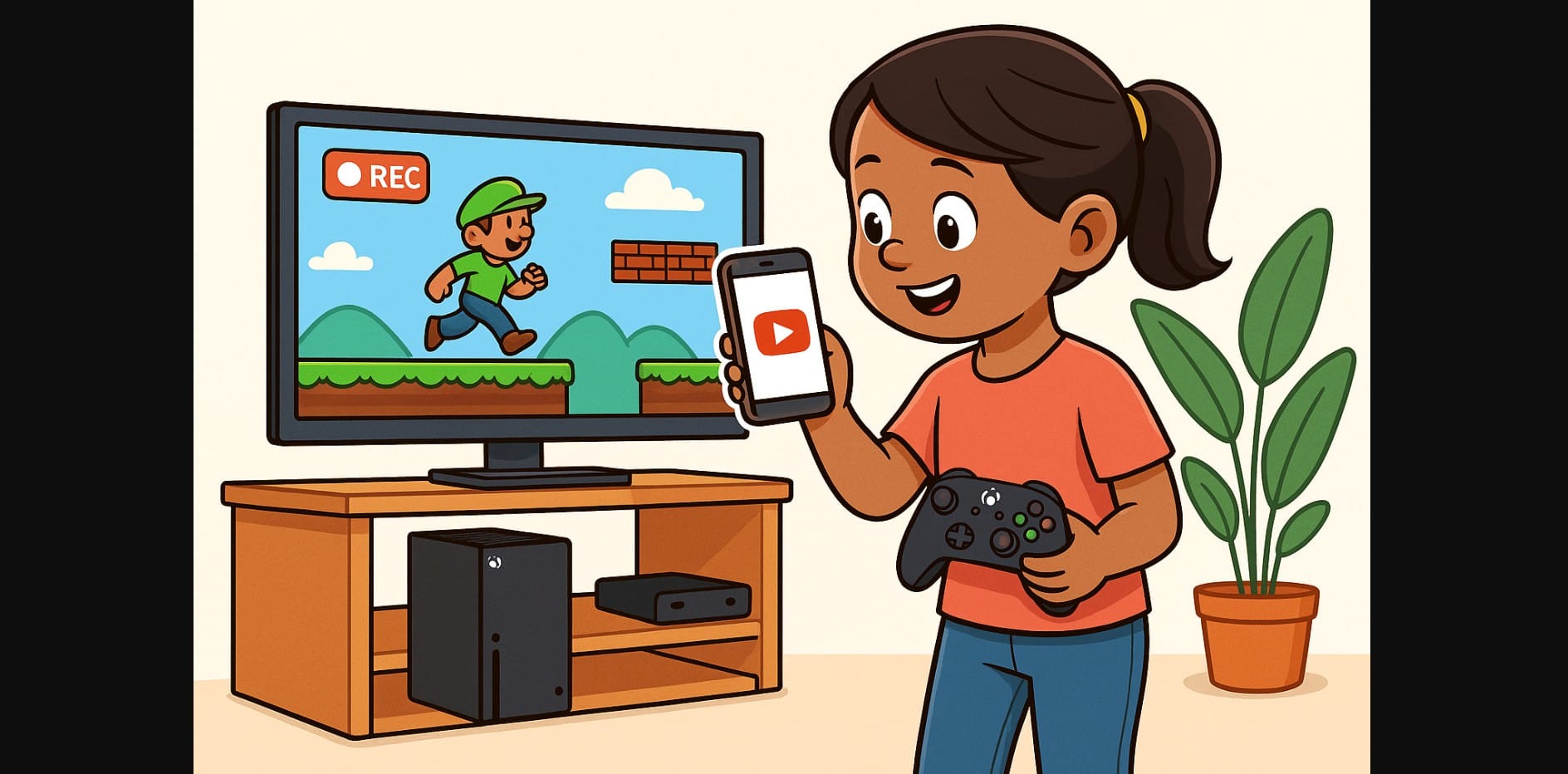
If you’re gaming on an Xbox in India, you already have the tools to record your best moments, stream live, and share clips with friends no capture card or PC required. Whether you want to show off a clutch PUBG win or create Instagram Shorts from your FIFA goals, Xbox has made it easy.
Here’s exactly how to use these features the right way.
1. One Button to Record It All: The Xbox Share System Explained
The Share button on the Xbox controller is your shortcut to screenshots, recordings, and highlights.
- Tap once to take a screenshot
- Hold it to record the last 30 seconds of gameplay
- On older Xbox One controllers: use the Guide button > View > Capture options
You can also capture gameplay from the Xbox menu if you want more control over what to record.
2. Set Your Own Clip Lengths Before the Action Starts
By default, Xbox records short clips but you can adjust this:
- Go to Settings > Preferences > Capture & Share > Record What Happened
- Choose: 15 seconds, 30 seconds, 1/3/5 minutes
Longer recordings are saved at lower resolution to save space.
3. Where Do My Screenshots and Videos Go?
Your captures are automatically saved in three possible places:
- Internal Xbox storage (temporary unless uploaded)
- Xbox Network (cloud) if you’re signed in with internet access
- External USB drive (if manually set up)
You can view them anytime by going to Guide > Capture & Share > Recent Captures
4. Share Clips to Phone, WhatsApp, or YouTube Using the Xbox App
The Xbox mobile app (Android/iOS) is the easiest way to grab your content.
- Open the app and log in
- Go to Library > Captures
- Download your clip or screenshot
- Share to Instagram, WhatsApp, or edit in CapCut
No need to connect USB or transfer to PC clips appear automatically if uploaded to Xbox Network.
5. Want Better Quality or PC Editing? Use a USB Drive
If you want full control:
- Format a Fast USB drive to NTFS on your PC
- Plug it into your Xbox
- Go to Settings > Capture & Share > Capture Location
- Select your USB as the destination
Now your screenshots and gameplay videos will save directly to the drive perfect for editing on PC.
6. Stream Your Gameplay to Twitch Directly from Your Xbox
You don’t need a capture card or PC to go live Xbox supports built-in Twitch streaming:
- Download the Twitch app from the Xbox Store
- Sign in and link your account using a QR code
- Go to Capture & Share > Live streaming
- Choose microphone, camera, and stream quality
- Go live!
You’ll need stable upload speeds above 20 Mbps for smooth streaming. JioFiber, Airtel Xstream, or ACT broadband plans usually support this.
7. Add Your Voice, Face, and Style While Streaming
- Use any Xbox-compatible USB webcam (like Logitech C920)
- Plug a headset into your controller for live mic input
- Party chat audio can also be included in your stream (enable in audio settings)
- Overlays and custom transitions are basic on console, so PC streamers may prefer OBS + capture card
8. YouTube and Instagram Uploads No Direct Support, But It’s Easy
Xbox doesn’t offer direct upload to YouTube, but here’s how to work around that:
Use Your Phone
- Download the clip using the Xbox App
- Open YouTube, Instagram, or CapCut to edit and upload
Use OneDrive from Xbox
- Upload directly to OneDrive (via Xbox Media Library)
- Access from your phone or PC
Use USB Drive
- Record and transfer the file to PC
- Edit with Clipchamp, DaVinci Resolve, or any video tool
9. Don’t Forget to Set Your Privacy and Audio Options
To control who sees your clips or what’s recorded: Go to Settings > Preferences > Capture & Share
Review these:
- Auto-upload to Xbox Network – On or off
- Who can view – Friends, public, or private
- Include mic or party chat – Optional per clip or stream
10. How Gamers Are Using Xbox Capture in Real Life
| Use Case | Best Method | Notes |
|---|---|---|
| PUBG kill reels | 30s capture + Xbox App | Share directly on WhatsApp |
| FIFA goals for Shorts | 60s clip + phone edit | Good for Instagram |
| Streaming Forza live | Twitch + webcam | Best with stable fiber net |
| Highlight montages | USB to PC | Ideal for YouTube or advanced edits |
With just your Xbox console, controller, and phone, you can now create, edit, and share gameplay content anywhere even with limited gear. Whether you’re posting kills to your friend group or building a gaming channel from your room in Bengaluru or Bhopal, Xbox’s capture tools give you the head start.

