
How Software Updates Quietly Reduce Laptop Battery Backup
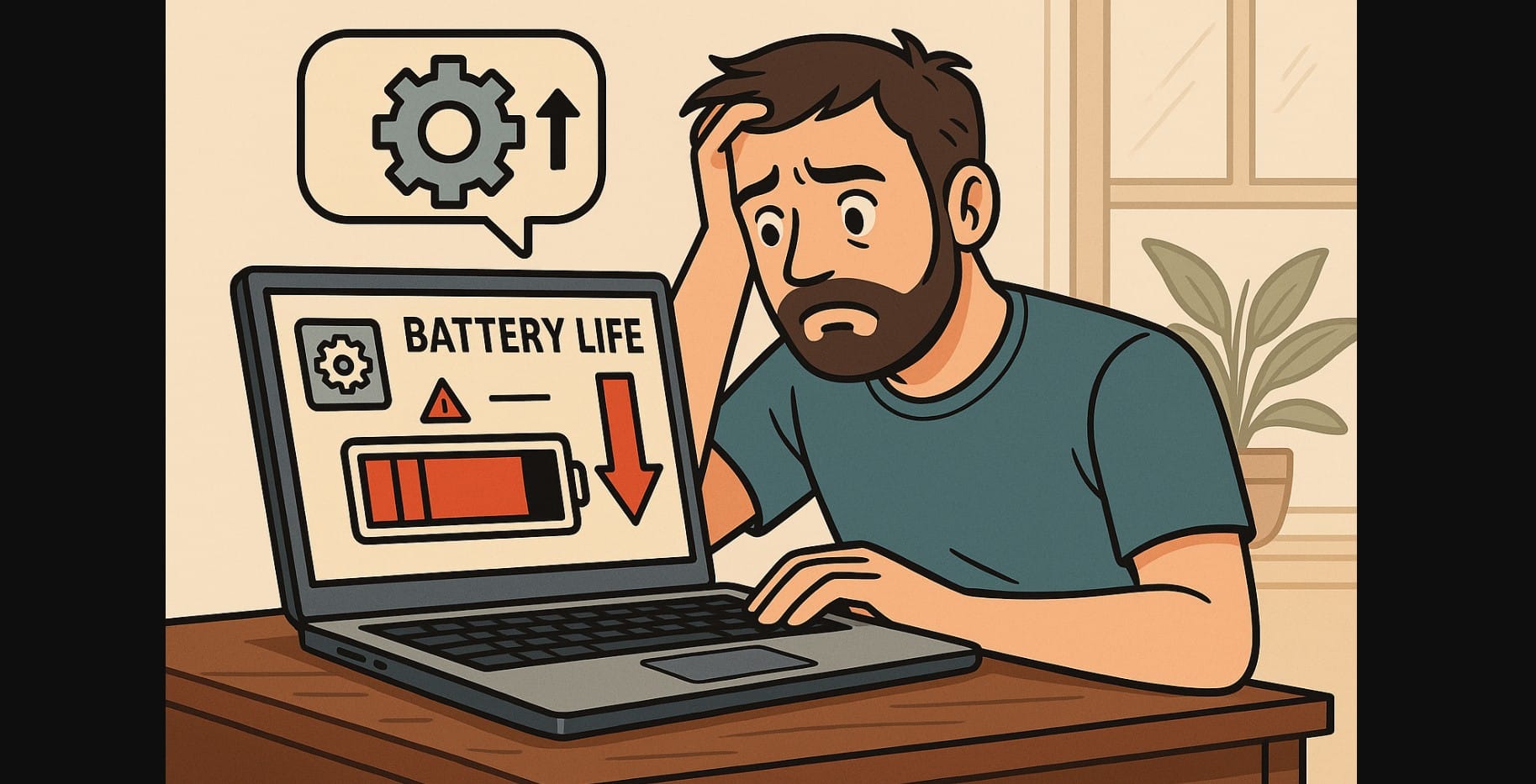
When laptops receive major software updates whether Windows 11 upgrades, macOS patches, or Linux kernel changes they often activate new background services by default. Features like indexing, telemetry reporting, cloud sync, visual effects, and real-time feedback systems are re-enabled.
For users who rely on battery backup during power cuts or inverter use, these unnoticed services create a real-world problem: battery drain without active usage. Updates frequently reset laptops to “Balanced” or “Performance” modes, overriding user-set Battery Saver or custom energy profiles. In India, where many users optimize settings manually to deal with unreliable electricity or long working hours, these resets silently shorten battery backup times by 30 minutes or more without any hardware fault.
1. Major Software Updates Impact on Laptop Battery
Laptop Battery Drains Overnight Even in Sleep Mode
After major updates, sleep settings often break.
Instead of entering deep sleep (modern standby), the laptop remains in active idle with Bluetooth, Wi-Fi, or USB wake features switched back on.
Many Indian users wake up to find laptops drained from 70% to 10% overnight without using them.
Laptop Heats Up or Fan Runs More After OS or Driver Update
Post-update processes like content indexing, background malware scans, or telemetry upload continue for hours.
In Indian homes without air conditioning, this causes noticeable heating even while idle heat that further reduces charging efficiency and overall battery health.
Charging Becomes Slower or Charging Limit Settings Vanish
Smart charging features (like Lenovo’s 80% limit or Dell’s battery life extender) sometimes stop working after BIOS, chipset, or driver updates.
Indian users who once had smart charging activated may find their laptop fully charging to 100%, exposing the battery to unnecessary stress.
2. How to Identify Update-Related Battery Loss
Compare Battery Report Before and After Update for Capacity Drop
Before a major update, run powercfg /batteryreport in Windows or view the battery health report on macOS.
After the update, check:
- Full Charge Capacity vs Design Capacity
- Estimated backup time at full charge
If backup estimates drop sharply but cycle count remains normal, the update is the likely cause.
Check for High Background Usage in Task Manager or Activity Monitor
Post-update, open Task Manager (Windows) or Activity Monitor (macOS) and sort apps by CPU usage.
Look for new or unexpected apps consuming constant CPU, such as:
- OneDrive or Google Drive
- Microsoft Edge preload
- Cortana
- Windows Widgets
These hidden services quietly eat into battery reserves.
Look for Reset Power Plan, BIOS, or Driver Settings
Open your power settings. If you find:
- Sleep timers extended
- Processor boost enabled
- Screen timeout disabled
then your custom settings were overwritten during the update.
Similarly, brand utility apps (like Lenovo Vantage or ASUS Battery Health Charging) may need manual reinstatement.
3. How to Fix Laptop Battery Drain Caused by Updates
Re-Enable Battery-Saving Settings in Windows, Linux, or macOS
- Set power mode to “Best Power Efficiency” or enable Battery Saver immediately after updating
- Adjust screen brightness, sleep timers, and idle timeout settings manually again
For Indian users who rely on battery backup during load shedding or shared workspaces, restoring these settings immediately can prevent major runtime loss.
Disable Background Sync and Auto-Start Services That Restart Post-Update
Go through startup apps in Task Manager or System Preferences and turn off:
- OneDrive auto-sync
- Windows Widgets
- Feedback Hub
- Game Bar
- Cloud helper apps
These may restart automatically even if disabled previously.
Manually Restore Brand Battery Tools and Charging Limits
Some updates uninstall or disable battery management apps.
Reinstall your brand’s utility and set:
- 80% charge limits
- Cooler fan profiles
- Battery saver thresholds
This protects the battery from long-term thermal and voltage stress.
4. When Rolling Back an Update Is the Only Way to Recover Battery Stability
Battery Backup Drops by More Than 40% Overnight Without Any Usage Change
If you notice a massive drop in backup time despite no heavy usage or temperature spikes, and battery health remains steady, it indicates software mismanagement. Rolling back the update or waiting for a fix may be the only solution.
Laptop Runs Hot at Idle After Update and Charging Time Increases
Constant heating even during light browsing or idling shows background processes stuck or misbehaving after driver or BIOS updates. If patches don’t fix this within days, consider driver rollback.
Smart Charging Stops Working or Battery Detection Fails
If utilities like Dell Power Manager, Lenovo Vantage, or ASUS Battery Health Charging no longer detect the battery or cannot apply charge caps, reinstall them or revert to a previous firmware version.
5. After Every Major Software Updates – Rerun These Battery Checks
You cannot trust default settings after every software update.
Always:
- Rerun battery report and check capacity
- Reapply custom power plans
- Reinstall brand battery utilities if needed
Proactive checks after every OS or BIOS update will help you protect your laptop’s battery health.

