
Enjoy Mobile Games on Your TV or Monitor – Best Display Setup for Gaming
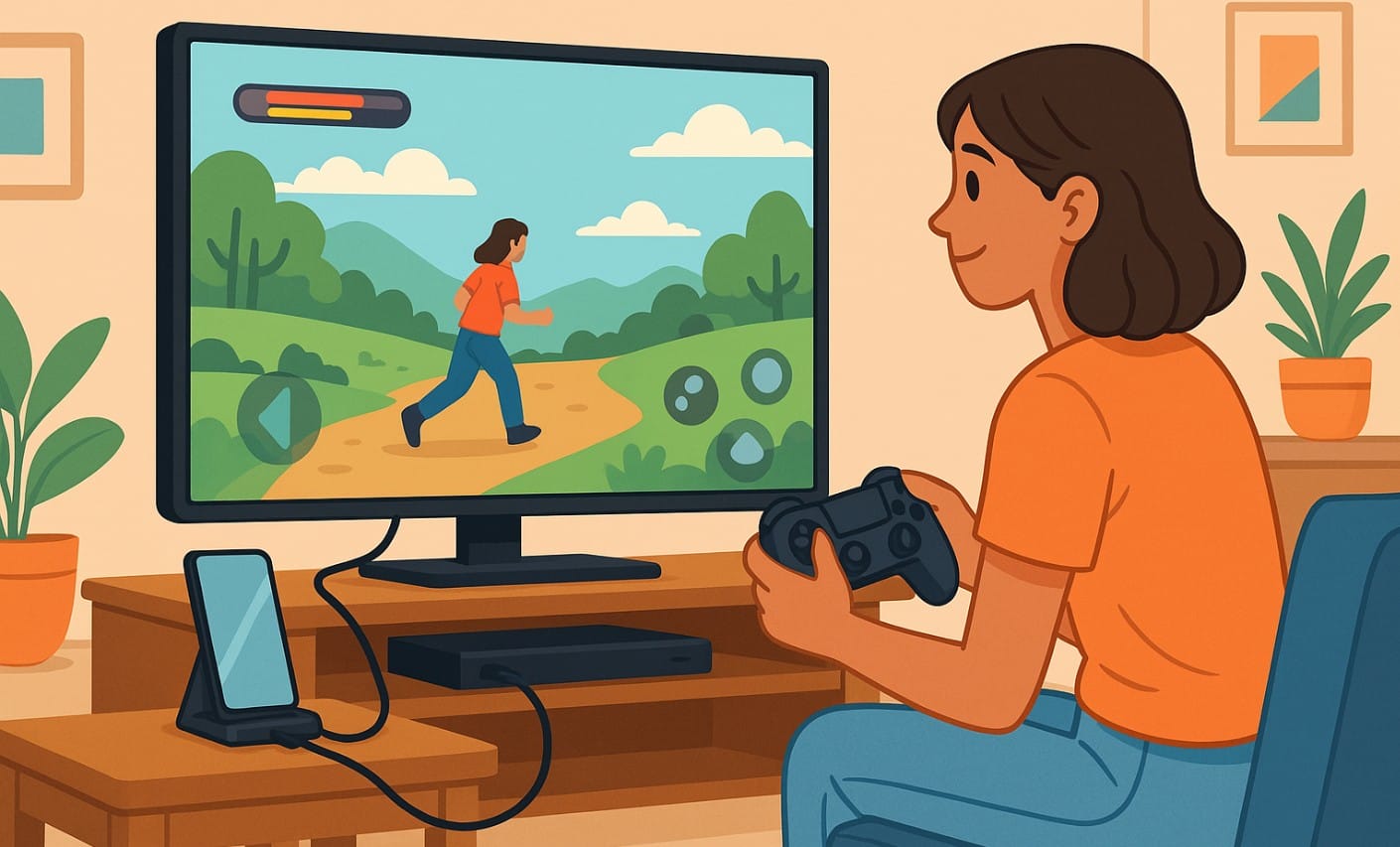
If you’re playing BGMI, racing games, or emulators on your phone, you’ve probably wished for a bigger screen. Indian gamers are doing exactly that connecting their phone to a TV or monitor to level up their experience.
But it’s not as simple as casting. There are two main ways to connect wired and wireless and both have their pros, cons, and compatibility issues.
This post walks you through what works in India, what to avoid, and how to set up your mobile gaming experience on a bigger screen without frustration.
1. Why Play Mobile Games on a Bigger Screen?
- More immersive experience for fast-paced or visual-heavy games
- Easier to play with controllers or external inputs
- Great for shared gaming or family sessions
- Better for your posture and eyes during long gaming hours
- Makes your phone feel more like a console
Whether you’re on the couch, at a desk, or playing in the living room, this setup can turn casual gaming into something more serious.
2. Wired vs Wireless – What’s Better in India?
| Method | Pros | Cons |
|---|---|---|
| Wired (USB-C to HDMI) | No lag, stable full HD output | Not supported by all phones, requires adapter |
| Wireless (Miracast / Chromecast) | Convenient, no cables | Input lag, not suitable for fast games |
If you’re playing anything competitive or with fast reactions, go wired for the best performance.
3. What You Need to Set It Up
3.1 For a Wired Setup:
- Phone that supports USB-C video output (check your model)
- USB-C to HDMI adapter or a full desktop-style dock
- HDMI cable
- A TV or monitor with HDMI input
- Optional: Game controller, connected via Bluetooth or USB OTG
3.2 For a Wireless Setup:
- Smart TV with Miracast, or
- Google Chromecast / Fire TV Stick
- Strong Wi-Fi signal, preferably 5GHz
- Activate Screen Cast / Smart View / Wireless Display on your phone
- Avoid heavy background apps during mirroring
4. Common TV/Monitor Mobile Gaming Issues and How to Fix Them
| Problem | Fix |
|---|---|
| Lag or delay when casting | Use 5GHz Wi-Fi or switch to wired HDMI connection |
| No output from USB-C | Check if your phone supports video out (not all do) |
| Black screen or flickering | Try a different HDMI cable or adapter |
| Audio not syncing | Use Bluetooth earbuds connected to your phone directly |
| Game stutters mid-session | Lower resolution or frame rate settings |
5. Phones and TVs That Work Well with Phone Gaming
5.1 Phones with USB-C Video Out (Check Model First):
- Samsung Galaxy S Series, Fold Series (supports DeX or HDMI out)
- ASUS ROG Phone Series
- Motorola Edge+ (select models)
- Sony Xperia, OnePlus Pro flagships (limited support)
- Xiaomi Series (varies by region)
5.2 TVs Compatible with Wireless Casting:
- Mi TV
- OnePlus Series Smart TV
- Realme Smart TV Neo / 4K
- LG Smart TVs (WebOS with screen share)
- Any TV with Chromecast or Fire TV Stick
You don’t need an expensive TV just check if screen mirroring or HDMI input is available.
Summary – Want Bigger Gaming Experience? Use Your TV
Your phone can do more than just fit in your hand with the right gear, it becomes a mini console.
If you’re looking for the smoothest gaming performance, go for a wired HDMI connection. If you’re just having fun casually or showing a game to friends, wireless casting is quick and easy.
Indian gamers are already using this setup for everything from emulator gaming to playing BGMI with a controller on a 55-inch screen. Once you try it, you won’t want to go back.

