
Laptop Battery Troubleshooting: How to Check & Fix Issues
In India, laptop battery replacements aren’t always quick or affordable especially in smaller cities. But before assuming your battery is “dead,” it’s important to know that many common issues can be fixed without spending anything.
Overheating, background apps, power cut damage, or bad charging habits often cause poor performance. Battery health reports give you the data to find out what’s really going on. If the problem is fixable, you’ll avoid wasting money. If the battery is worn out, the report will confirm it.
1. Laptop Battery Acting Up? Generate a Battery Health Report
Windows: Create a Battery Report Using powercfg /batteryreport
- Open Command Prompt as administrator
- Type powercfg /batteryreport and press enter
- It will generate a file like:
C:\Users\YourName\battery-report.html - Open the file in your browser
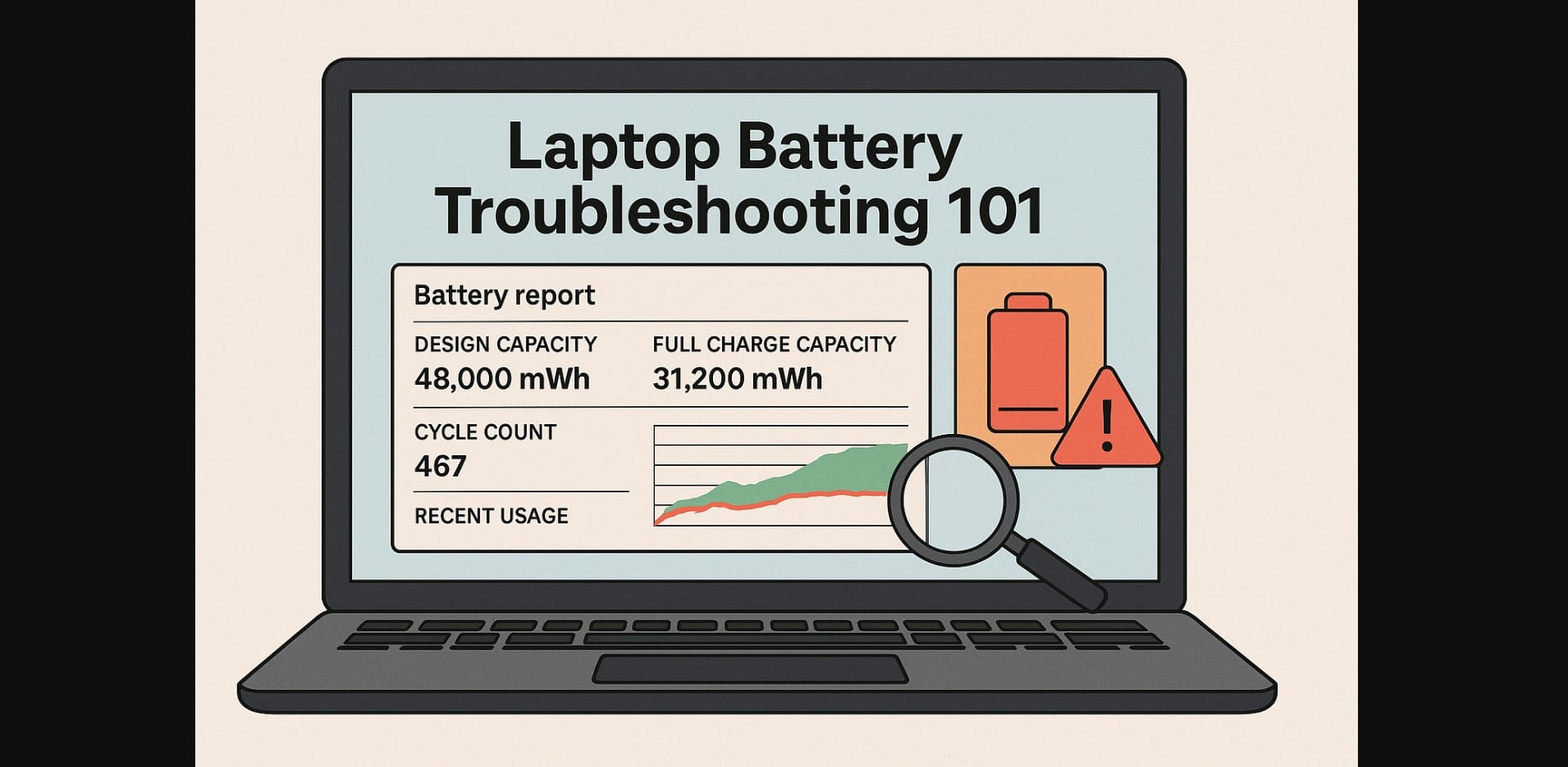
This report shows full charge capacity, design capacity, cycle count, usage history, and battery life estimates.
macOS: Find Laptop Battery Cycle Count and Capacity in System Report
- Click Apple menu – About This Mac – System Report
- Under the “Power” section, look for:
- Cycle count
- Condition (Normal / Replace Soon / Service Battery)
- Full charge capacity vs. design capacity
Linux: Use upower Commands to Analyze Laptop Battery Charge and Wear
Use this command in terminal:
bash
CopyEdit
upower -i /org/freedesktop/UPower/devices/battery_BAT0
You’ll see fields like:
- Energy-full
- Energy-original
- Cycle count
- Percentage
These tell you how much battery life remains and whether wear is significant.
2. Check Laptop Battery Report and Identify Warning Signs
Cycle Count: Tells You How Many Full Charging Cycles the Battery Survived
Most lithium-ion laptop batteries are rated for 400-500 cycles. A high cycle count doesn’t mean failure, but it does mean you should watch for capacity loss after the 400 mark.
Design Capacity vs. Full Charge Capacity: Checking Real Battery Health
If the full charge capacity is less than 70% of the original design, your backup will be noticeably shorter. Below 60% means the battery is nearing end-of-life, and the laptop may shut down earlier than expected.
Example:
- Design Capacity: 48,000 mWh
- Full Charge Capacity: 31,200 mWh
- Health = 65% → Significant degradation
Recent Usage and Sleep Patterns: Finding Why Battery Drains Faster
Battery reports also show usage and charging history. If you notice:
- Battery drains while asleep
- Sudden drop from 40% to 10%
- Discharge during idle time
These are signs of misconfigured sleep settings or background power usage.
3. Diagnose Common Problem with Battery Report
Laptop Battery Drains Fast Even on Basic Tasks Why Reports Show the Cause
Battery wear and inefficient apps can be confirmed by the “Battery life estimates” section. If your laptop used to give 5 hours and now only gives 2.5, and the report confirms your capacity is below 60%, you’re losing charge faster because the battery is aging.
Laptop Charges Very Slowly or Stays Stuck at 80-90% What Report Confirms
This could be due to:
- Battery wear
- Charging cap settings enabled (common in Lenovo, Dell, ASUS)
- Heat throttling during charging
The report shows whether charge level is plateauing despite AC power.
Laptop Powers Off at 30% Charge Remaining How Cycle Count and Wear Percentage Reveal the Problem
Battery management systems misreport charge levels when the battery is worn out. If your laptop consistently shuts down early, check if the full charge capacity is far below original and whether the cycle count is high.
4. Practical Actions to Improve Laptop Battery Performance
Adjust Laptop Power Settings to Lower Background Drain
Turn off:
- Auto-sync features (OneDrive, Dropbox, Google Drive)
- Startup apps
- Unused extensions or background browser tabs
Use “Battery Saver” mode when unplugged.
Clean Vents and Improve Cooling to Reduce Thermal Battery Damage
Overheating degrades battery performance and affects charging behavior. Clean air vents with compressed air or visit a service center annually. Use a laptop stand or cooling pad especially in India’s warm indoor conditions.
Use a Certified OEM Charger to Correct Wrong Charging Behavior
Low-quality third-party chargers cause unstable charging. If your battery report shows inconsistent charge levels, switch to an original or certified adapter with the correct wattage (usually 45W-65W for most Indian laptops).
Calibrate Battery Only if Report Shows Large Difference Between Estimated and Actual Battery Life
If your battery seems healthy on paper but backup time feels off, you can recalibrate:
- Fully charge
- Use battery till 5-10%
- Recharge to 100% without breaks
Do this once. Don’t make it a habit calibration stresses the battery and is not recommended regularly.
5. When Your Laptop Battery Report Clearly Shows Replacement Is the Only Solution
Full Charge Capacity Below 50% & Cycle Count Above 500
At this point, no settings or cleaning will restore backup time. This battery is at end-of-life.
Battery Health Drops and Estimated Battery Runtime Falls Below 50%
If your report shows 5 hours design time but you’re now getting 2 or less, it’s time for a replacement especially for travel, study, or meetings.
Signs of Battery Swelling or Inconsistent Voltage Charging in Report
If the report shows irregular charge cycles or you feel physical swelling under the touchpad or base, stop using the battery and replace it immediately.
6. Use Laptop Battery Reports to Troubleshoot
You don’t have to be an expert to use battery reports; just knowing where to look is enough.
In India, with its high heat, long charging times, and budget devices, a simple battery report can help avoid unnecessary replacements.
Before you spend ₹3,000-₹7,000 on a new battery, spend 10 minutes reading the report. You might get another year of usable life and learn how to avoid the same problem again.

