
Laptop Battery Low and No Charger? Survival Guide for Students and Professionals
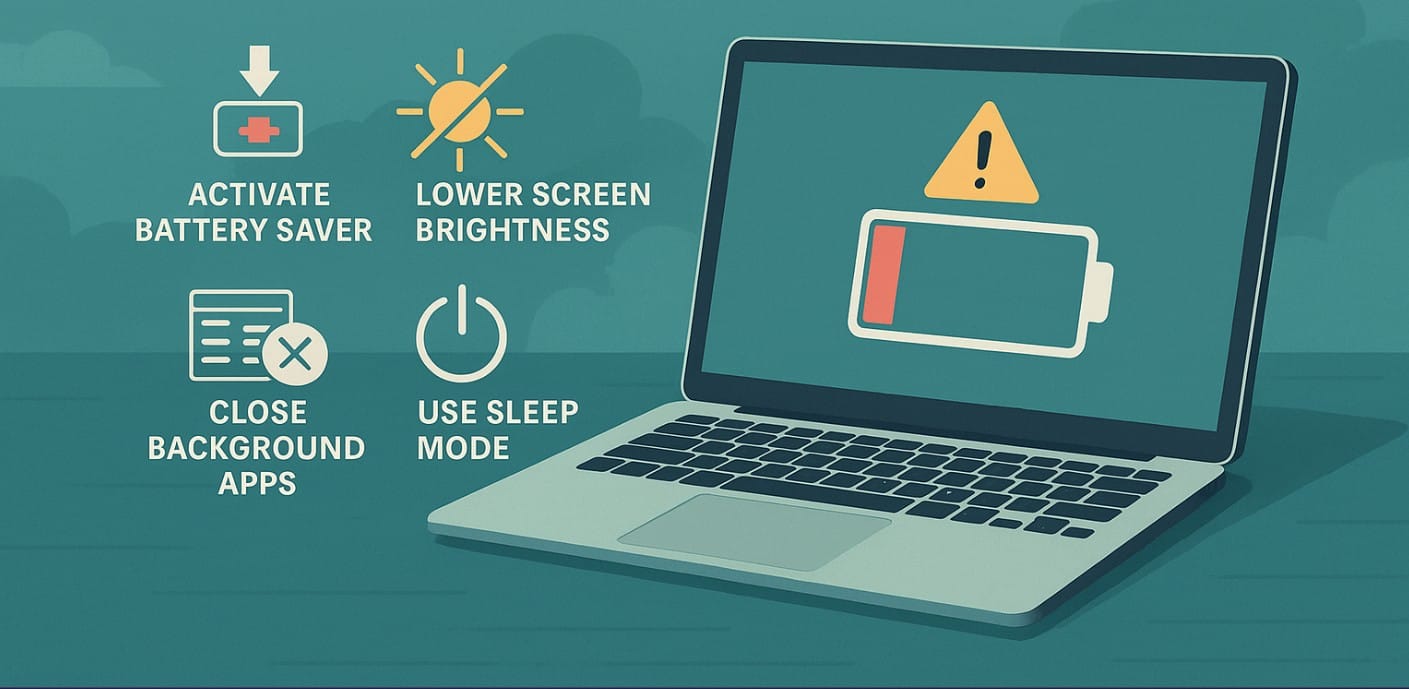
In India, power cuts remain common across towns and cities, especially during peak summers. Whether you’re working in a shared hostel room, commuting by train, or stuck at an airport with limited outlets, there are many situations where charging your laptop isn’t possible when you need it the most.
Emergency Laptop Battery Saving Tips:
1. Immediate Actions to Extend Laptop Battery Runtime
Activate Battery Saver Mode or Power Efficiency Mode Immediately
Switching to Battery Saver (on Windows), Low Power Mode (on macOS), or a lightweight profile (on Linux) cuts down background tasks, slows the processor slightly, and dims unnecessary animations. This is the first and most important step the moment you realize you’re running out of charge.
Lower Screen Brightness to the Minimum Comfortable Level
Screen brightness often accounts for 10-20% of total battery drain. Reducing brightness to 30-40% indoors can easily save an additional 30-45 minutes of runtime, especially in Indian lighting conditions where maximum brightness is rarely necessary.
Close All Background Apps and Unnecessary Tabs
Applications like Chrome, Slack, MS Teams, WhatsApp Desktop, Dropbox, or OneDrive continue to consume CPU cycles and battery even when minimized. Close every app and tab that you don’t absolutely need for your immediate task.
Disable Keyboard Backlighting, Bluetooth, Wi-Fi, and Location Services
If you’re working offline (typing, reading documents, coding), you don’t need Wi-Fi, Bluetooth, or keyboard lights. Disabling these features can save small but significant amounts of power over time.
2. Choosing Low-Power Activities That Consume Less Battery
Stick to Basic Typing, Reading PDFs, or Working in Lightweight Applications
Using simple applications like Notepad, offline MS Word, or basic spreadsheet tools consumes minimal battery. Avoid heavy software like Photoshop, heavy browser sessions, or video calls during emergencies.
Switch to Offline Tools Instead of Cloud-Connected Services
Working in Google Docs or other cloud-based apps requires continuous internet connectivity and frequent auto-syncs. Switch to offline documents or save pages locally to reduce processor and network usage.
Disable Auto-Sync and Cloud Backup Temporarily
Auto-sync services such as OneDrive, Google Drive, and Dropbox silently consume processor power and battery life. Turn off auto-sync temporarily until you’re back on stable power.
3. Smart Laptop Settings Adjustments to Stretch Battery Life
Use Sleep Mode Instead of Leaving Laptop Idle
Even when you step away for just 2-3 minutes, put your laptop into Sleep Mode. Sleep uses less than 1-2% battery per hour, compared to 10-15% drain if you leave the laptop on with screen and background apps active.
Turn Off High-Performance Graphics if You Have a Discrete GPU
Laptops with separate NVIDIA, AMD, or Intel Arc graphics consume significantly more power even when idle. Force the laptop to switch to integrated graphics through your settings or device manager to extend battery life.
Limit Processor Boost (Lower CPU Performance Manually)
In Windows Power Settings, you can set the Processor Performance Boost Mode to “Disabled” or “Eco Mode.” This reduces unnecessary CPU spikes and extends your battery runtime during critical moments.
4. Emergency Situations Where Conserving Battery Is Critical
| Emergency Situation | Why Battery Saving Matters |
|---|---|
| Power cut during a critical online exam | Finish submission before battery dies |
| Train journey without plug points | Complete work offline or watch saved content |
| Airport or bus stop delay | Access work files or continue entertainment |
| Office power backup not supporting laptops | Continue working without interruption |
| Hostel room power failure | Meet assignment deadlines without charger |
5. Saving Laptop Battery with Smart Usage
You don’t need expensive accessories or heavy-duty batteries to survive emergency battery situations. All you need is a smart usage strategy:
- Cut background drains
- Lower screen output
- Prioritize lightweight work
- Sleep the device during every short break
In India, frequent power cuts, travel delays, and unreliable plug points are common issues, and these simple steps can be crucial for meeting important deadlines instead of losing all progress.

