
Confused by Mbps, DNS, FUP or Static IP? Broadband Terms Explained
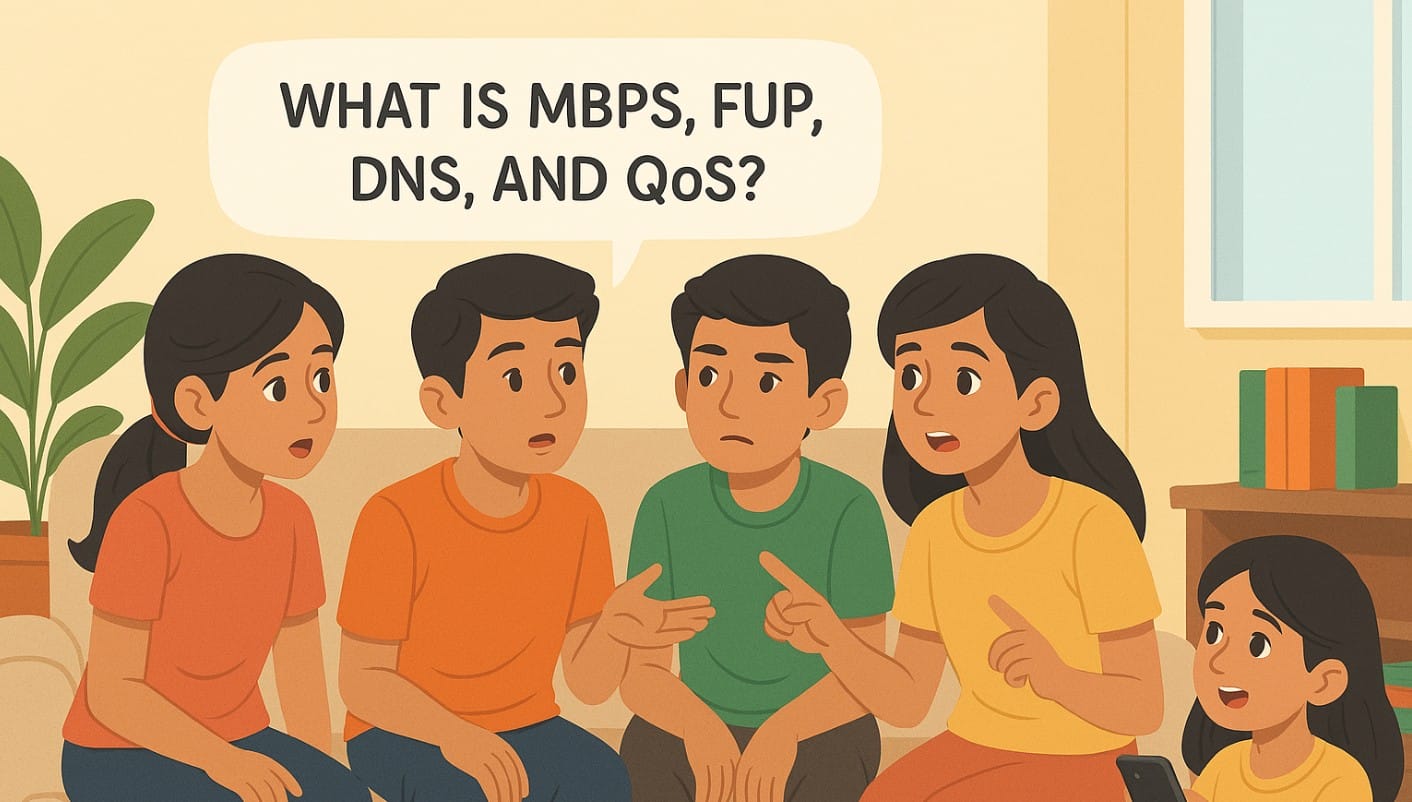
Buying a broadband plan in India? Reading your Wi-Fi settings or speaking to your ISP? You’ve probably come across terms like Mbps, FUP, DNS, or Static IP and had no idea what they really meant.
This post breaks it down in plain English, with real-life examples from Indian homes, so you finally understand what you’re paying for and how to get the most out of it.
1. Bandwidth
Bandwidth is the maximum amount of data your connection can handle at one time. Think of it like a water pipe the wider the pipe, the more water flows through at once. It doesn’t always mean “speed” it’s more about how many things can happen at once.
Real-life example
If you have 100 Mbps bandwidth and 4 people are streaming HD video, your connection may slow down. But with 300 Mbps, all 4 can stream without buffering.
2. Mbps vs Gbps
- Mbps = Megabits per second (most Indian plans today)
- Gbps = Gigabits per second (1 Gbps = 1000 Mbps, used in high-end plans)
What’s enough for most homes:
- 50 Mbps: Small family, OTT streaming, online classes
- 100-300 Mbps: Medium homes, WFH + multiple OTT users
- 1 Gbps: Rare in India; useful for heavy uploads, offices, creators
Your OTT apps don’t use all that bandwidth YouTube HD needs just ~5 Mbps. So 100 Mbps is already enough for most Indian families.
3. FUP (Fair Usage Policy)
Even if your plan says “unlimited,” your ISP might slow down your speed after you use a certain amount of data in a month. This is called FUP.
JioFiber 150 Mbps plan with 1 TB FUP:
- You get full speed up to 1 TB
- After 1 TB, speed drops to 1 Mbps or 2 Mbps for the rest of the month
Check your ISP’s app to track usage crossing FUP makes even basic apps feel slow.
4. DNS (Domain Name System)
DNS is like your internet’s phonebook it translates website names into actual server addresses. A slow or unreliable DNS can make pages load slowly even if your speed is fine.
- If websites feel slow to open, change your DNS settings to Google DNS (8.8.8.8) or Cloudflare (1.1.1.1)
- Jio and Airtel use their own DNS but changing it often makes web browsing feel faster
5. QoS (Quality of Service)
QoS is a router feature that lets you prioritize internet traffic so important apps (like Zoom or Teams) work smoothly even if someone else is downloading.
Your kid is downloading games, and you’re in a video call. With QoS, you can give your work laptop higher priority so your call doesn’t drop.
Find QoS in your router’s app or admin settings.
6. Static IP vs Dynamic IP
- Dynamic IP: Your device gets a new internet address (IP) each time you restart or reconnect
- Static IP: You get one fixed address, which never changes
When static IP matters:
- Hosting CCTV, servers, remote desktop access
- Some online games (or work VPNs) require static IP
Jio and Airtel usually give dynamic IPs by default. Static IPs are available only on request and often cost extra per month.
7. Upload vs Download Speed
- Download: Data coming to you (browsing, video streaming)
- Upload: Data going out (sending files, live streaming, video calls)
example:
Your 100 Mbps plan may give only 40 Mbps upload. If your Zoom call lags but Netflix works fine, it’s likely an upload issue.
8. Latency / Ping
This measures how fast a signal goes from your device to a server and back in milliseconds (ms). Lower is better.
Real-life relevance:
- 10-30 ms: Great for gaming, video calls
- 50-100 ms: OK for browsing and streaming
- 150+ ms: You’ll feel the lag, especially in games or calls
Ping is affected by your ISP, the server’s location (India vs abroad), and time of day (congestion).
9. 2.4 GHz vs 5 GHz Bands
Wi-Fi routers have two frequency bands:
- 2.4 GHz: Slower, but longer range (goes through walls better)
- 5 GHz: Faster, but shorter range (ideal for close-range speed)
Real-life example:
Your smart TV near the router should use 5 GHz.
Your washing machine or light controller in another room should use 2.4 GHz.
Use dual-band routers to manage both.
10. Router vs Modem vs ONT
Router: Creates the Wi-Fi signal in your home
Modem: Converts signals between your ISP and your home network (used in cable or DSL, less common now)
ONT (Optical Network Terminal): The device used in fiber connections converts fiber line to usable internet
In Indian homes:
- JioFiber and Airtel usually install a combo unit with ONT + router
- If you use a personal router, the ONT stays and connects via LAN
Understanding broadband terms isn’t just for techies
Whether it’s checking your FUP, fixing DNS lag, or knowing when to ask for a static IP, these terms help you use your broadband better. Understanding these concepts not only enhances your internet experience but also empowers you to troubleshoot common issues more effectively.
Bookmark this glossary or share it with someone who’s just getting their first broadband connection.

