
Monitor Cables and Ports for PC Users – Explained Clearly
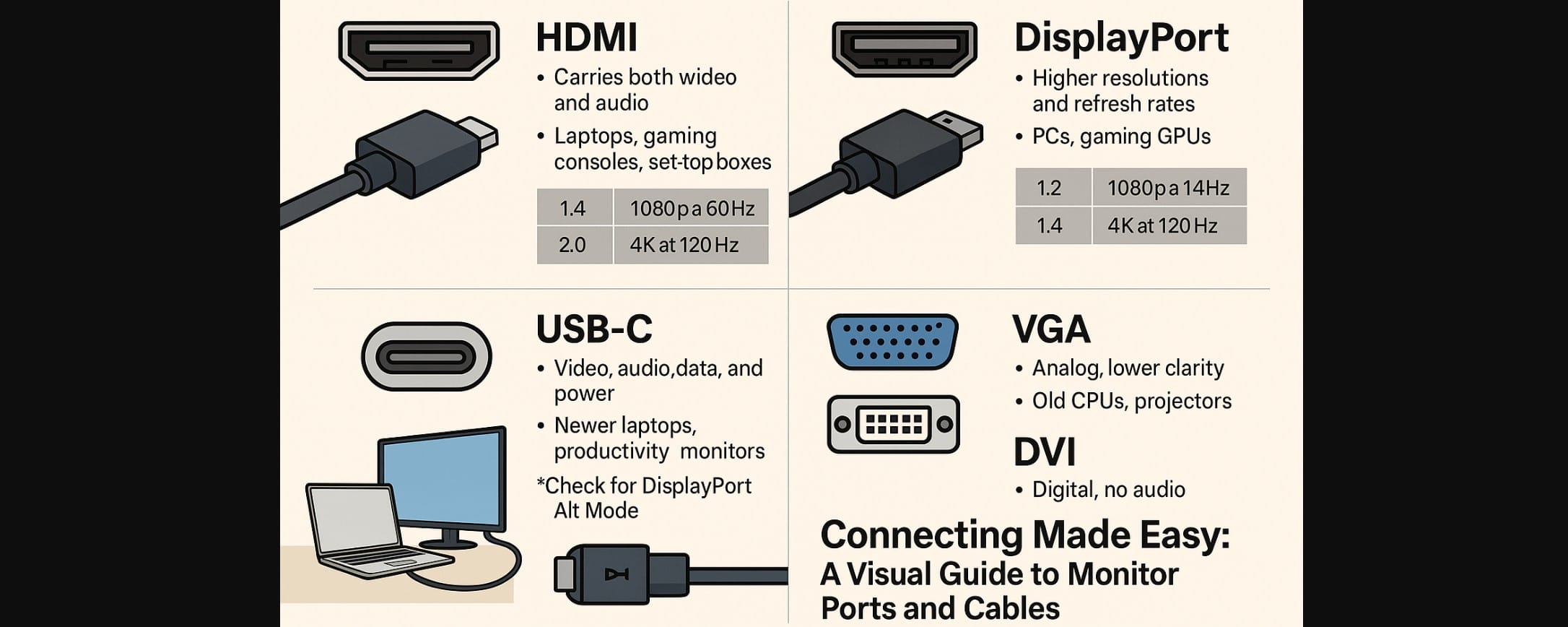
Don’t Let Ports and Cables Confuse You – Bought a monitor and now wondering how to actually connect it to your laptop or PC? You’re not alone.
In India, most buyers face this common question especially with so many types of ports like HDMI, DisplayPort, USB-C, VGA, and DVI. Each looks different, does different things, and affects the video quality, refresh rate, and even audio.
This post is your simple, no-confusion guide to monitor ports and cables with a focus on what works best for Indian users.
1. Why Monitor Ports Matter More Than You Think
- The wrong port or cable can limit your screen’s resolution or refresh rate
- Not all monitors come with the best cable in the box
- If you connect incorrectly, you might not get sound or smooth visuals
- Many Indian setups combine old CPUs with new monitors or vice versa knowing what fits avoids buying extra adapters
2. HDMI – The Most Common and Easiest Option
- Carries video and audio
- Works with laptops, desktops, gaming consoles, Fire TV Stick, set-top boxes
Common HDMI Versions in India:
| Version | Max Resolution / Refresh Rate | Common In |
|---|---|---|
| HDMI 1.4 | 1080p @ 60Hz | Basic laptops, budget monitors |
| HDMI 2.0 | 4K @ 60Hz, 1080p @ 144Hz | Gaming monitors, newer GPUs |
| HDMI 2.1 | 4K @ 120Hz, 8K @ 60Hz | PS5, Xbox Series X, high-end displays |
For most Indian users, HDMI 2.1 is the sweet spot it supports gaming, productivity, and OTT streaming.
3. Monitor DisplayPort – For Gamers and Creators
- Supports higher resolutions and refresh rates than HDMI
- Great for 144Hz, 165Hz, or 240Hz monitors
Versions:
| Version | What It Supports |
|---|---|
| DisplayPort 1.2 | 1080p @ 144Hz, 4K @ 60Hz |
| DisplayPort 1.4 | 4K @ 120Hz, 1440p @ 240Hz |
| DisplayPort 2.0 | 8K ready (rare in India) |
Works best with NVIDIA and AMD GPUs on desktop PCs not usually found on laptops.
4. USB-C – One Cable for Everything (If Supported)
- Carries video, audio, data, and power
- Found on newer Type-C laptops, MacBooks, tablets, and all-in-one docks
- Ideal for students and professionals using a single cable for work
- Check if your device supports DisplayPort Alt Mode not all USB-C ports can send video
A USB-C monitor can charge your laptop while displaying video great for clean setups.
5. VGA – The Legacy Option
- Analog signal only
- No audio support
- Poor clarity above 720p or 1080p
Still Found In:
- Older desktops, school labs, basic projectors
Only use VGA if you’re stuck with an old system not suitable for modern displays.
6. DVI – Almost Gone, But Sometimes Useful
- Digital video (no audio)
- Better than VGA, worse than HDMI/DP
- Still supports 1080p
You might find this on older CPUs or basic office monitors. DVI to HDMI adapters are easy to find in India.
7. Audio Out & Extra Ports
- Most monitors with HDMI or DP can pass sound through a 3.5mm jack
- Useful if you connect speakers or headphones directly to the monitor
- Some monitors have USB ports for connecting peripherals or charging
8. Ideal Monitor Setup Examples
| Device Setup | Recommended Port | Reason |
|---|---|---|
| Laptop + Monitor (office work) | HDMI | Easiest and most widely supported |
| Gaming PC + 144Hz Monitor | DisplayPort | Required for high refresh rates |
| MacBook or Type-C Laptop | USB-C (Alt Mode) | Clean, single-cable setup with charging |
| Fire TV Stick / Set-top Box | HDMI | Only option with both audio and video |
| Old CPU + New Monitor | VGA (temporary), HDMI (preferred) | Use adapter or upgrade if possible |
9. Before You Buy a Desktop Monitor (India Specific)
- Check your device ports first – don’t assume HDMI or USB-C is there
- Look for cable version support – HDMI 1.4 ≠ HDMI 2.0 in performance
- Use certified cables – cheap HDMI cables may not support 144Hz properly
- Adapters can work – but always check what resolution and refresh rate they support
- Gaming = DisplayPort, Office = HDMI, Travel = USB-C is a simple way to remember
10. Monitor Ports You’ll Actually Use
You don’t need to be tech-savvy to get this right. Just match the monitor’s port with your device’s output, and choose a compatible cable.
Whether you’re gaming, working, studying, or streaming the right connection ensures:
- No signal issues
- Sharp video and clean sound
- Full use of your monitor’s features

