
How Well Do Console Gamepads Work on PC, Android TV, and Emulators?
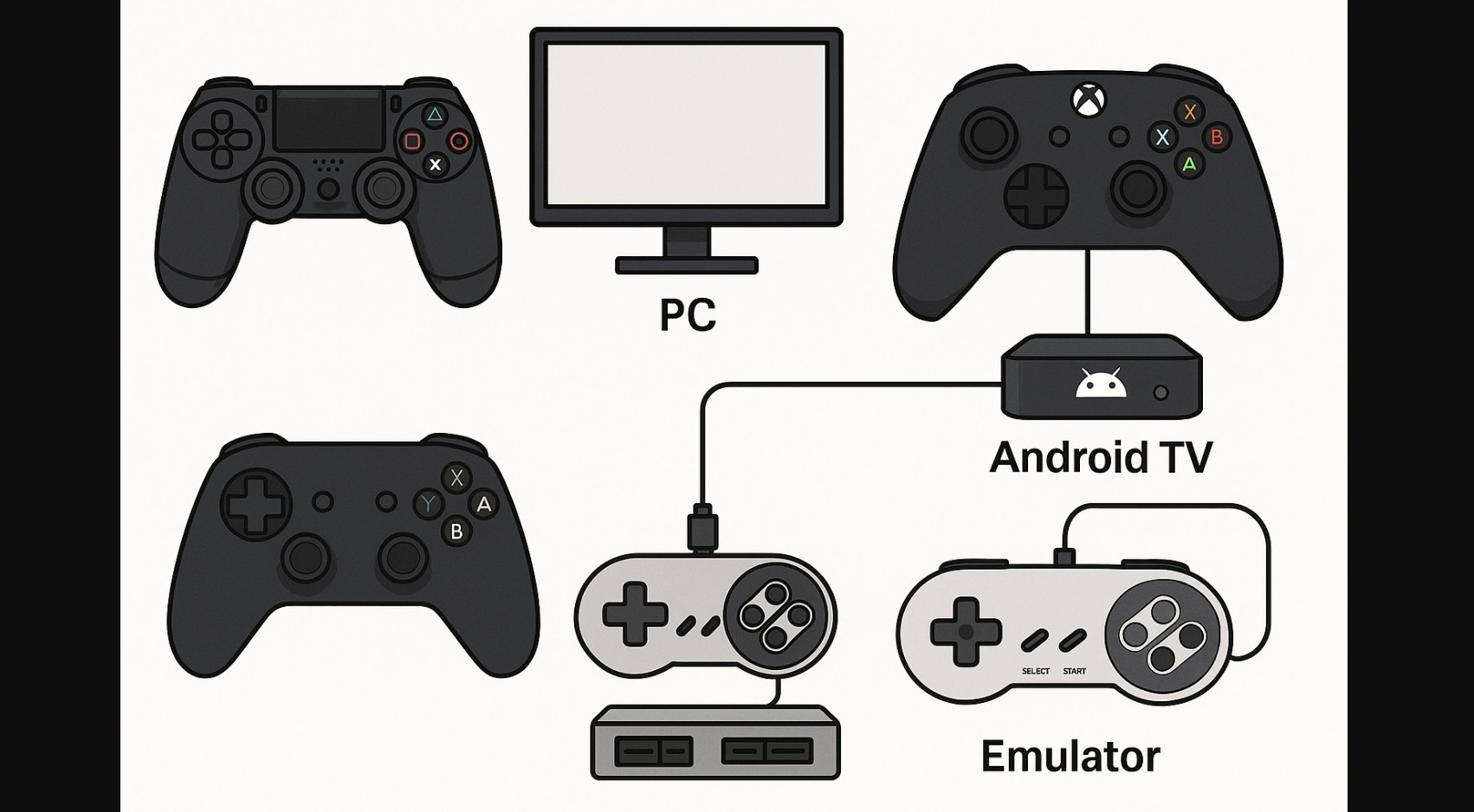
You already own a PlayStation or Xbox. Shouldn’t that controller also work on your PC or Smart TV? In many cases, it can, but unexpected problems often show up, especially in pc/android setups.
This guide clears the confusion: which console controllers work where, what can go wrong, and how to get everything working smoothly.
1. DualShock and DualSense Outside PlayStation: What Works and What Breaks
DualShock 4 (PS4 Controller)
- Pairs easily with Windows PCs, both wired and over Bluetooth
- Steam supports full remapping and customization
- Android phones and TVs detect it, but emulator support is inconsistent
- Some games don’t register L2/R2 as analog triggers
- Vibration and lightbar usually don’t work outside of native platforms
DualSense (PS5 Controller)
- Connects via USB-C or Bluetooth on PC
- Steam offers good support, but advanced features like adaptive triggers don’t transfer
- Android TVs recognize it, but button mapping can be unreliable
- Cheap Bluetooth chipsets in TVs often cause pairing delays or drops
Connection advice: Use a direct USB connection for consistent response. On Android TV, an OTG cable gives better reliability than Bluetooth.
2. Xbox Gamepads: The Most Reliable Option for Multi-Platform Gaming
Xbox One and Series X/S Controllers
- Fully compatible with Windows and Steam using Bluetooth, wired, or 2.4GHz dongles
- Android TVs generally detect Xbox controllers with no setup required
- Emulators recognize all inputs without needing custom profiles
- Button layout stays consistent across devices, making transitions easier
- Ideal for Gamers using multiple platforms, especially Steam + Android TV + PC emulators
3. Imitation Isn’t Always Compatibility: What to Know About Third-Party Gamepads
Brands like Redgear, EvoFox, Cosmic Byte, and GameSir offer budget-friendly gamepads styled after console designs. But their performance varies drastically.
- Some use outdated D-Input protocol, which doesn’t work well with modern games
- Button layouts may not match what your system expects
- Android TVs and Fire Stick often fail to detect them over Bluetooth
- USB detection can work, but without vibration or full trigger support
What to verify before buying:
- Whether the controller supports XInput
- If the brand lists Android TV or emulator compatibility
- Whether software is required for remapping
4. Fixing the Most Frequent Setup Problems Gamers Face
| Problem | Where It Occurs | What Helps |
|---|---|---|
| Bluetooth not pairing | Android TVs, Fire Stick | Switch to USB OTG or use a wired connection |
| Triggers behave like digital buttons | DualShock on Windows or TV | Enable remapping via Steam Input or DS4Windows |
| Game doesn’t recognize the controller | Emulators like PPSSPP or RetroArch | Activate input manually in emulator settings |
| Input lag during gameplay | Bluetooth on budget TVs or dongles | Use USB wired connection |
| Button layout feels reversed | Third-party controllers | Use re-mapping software or emulator profiles |
5. Smart Tools That Help You Get Full Value from Your Controller
- Steam Input: Custom remapping, calibration, and controller detection
- DS4Windows: Turns a DualShock into a recognized Xbox-style controller for better compatibility
- USB OTG Cable: A ₹100 solution to connect controllers directly to Android TVs
- Button Mapper (Android): Useful for remapping non-standard button layouts on Smart TVs
- X360ce: Helps games recognize D-Input controllers as XInput devices
6. Before You Plug In: What to Keep in Mind Across Devices
- Xbox controllers are the most reliable across all platforms, no special tools or drivers needed
- PlayStation controllers work well on Steam and PC, but struggle on Android-based systems
- Third-party gamepads need careful research, low cost often means limited support
- If you’re gaming on an Android TV, avoid Bluetooth where possible and go wired for better results
- Always test with a real game, not just the home menu, detection doesn’t guarantee full input compatibility
7. Cross-Platform Compatibility at a Glance (PC, Android TV, Emulators)
| Controller Type | PC (Windows) | Android TV / Fire Stick | Steam (Big Picture) | Emulators (PPSSPP, RetroArch) |
|---|---|---|---|---|
| DualShock 4 (PS4) | Yes (USB/Bluetooth) | Partially supported | Yes | Needs remapping |
| DualSense (PS5) | Yes (USB/Bluetooth) | Detection varies | Yes | Analog triggers may fail |
| Xbox One / Series X/S | Yes (all connections) | Excellent compatibility | Yes | Fully supported |
| Cosmic Byte / EvoFox | Mixed results | Often unsupported | May need reconfiguration | Manual setup needed |

