
Dual and Triple Monitor PC Setup – Work and Game Better
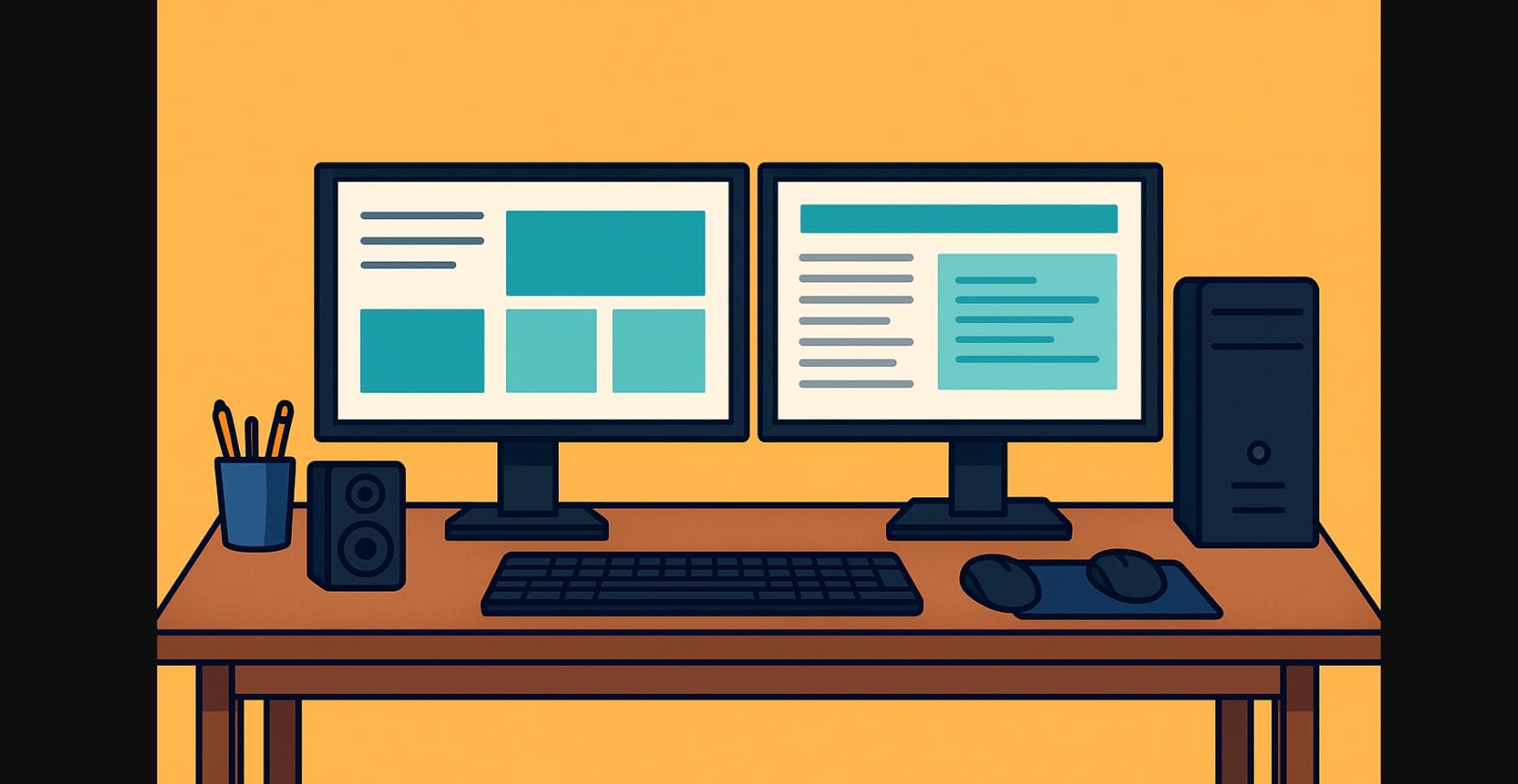
If you’re juggling gaming, content creation, or remote work in India, one screen often isn’t enough. A multi-monitor setup can completely change how you play, stream, edit, or even attend meetings giving you more space to multitask without constantly switching tabs.
In India, with prices of 1080p and 1440p monitors falling and GPUs offering better multi-display support, it’s easier than ever to expand your screen real estate without spending a fortune.
This guide shows you how to plan a dual or triple monitor setup, covering desk space, wiring, GPU compatibility, ideal screen sizes, and productivity tips that go beyond just gaming.
1. The Real Need for More PC Display Screens
The days of one monitor doing everything are over. In homes especially in bedrooms, hostels, or shared apartments people are blending work, gaming, and content creation on the same desk. And it’s hard to do all that efficiently with just one screen.
More pc users are switching to dual or triple monitors to:
- Join Zoom calls on one screen while working on another
- Play games while streaming or chatting
- Write code or design with a full preview next to their editor
- Watch videos or tutorials while following along in real time
2. What You Can Do Better With Two or More Displays
Multitask Like a Pro (Without Tab-Flipping Fatigue)
- Keep your video call open on one screen while referencing documents
- Monitor email, Slack, or WhatsApp Web without minimizing your work
- Use full-screen apps without missing real-time updates
Gaming Gets a Serious Upgrade
- Use your main monitor for the game, the second for Discord, OBS, or Twitch chat
- In racing or flight sims, ultra-wide or triple-screen views are far more immersive
- Game on one screen, stream or record gameplay with scene control on another
Great for Content Creators Too
- Edit video on one screen with media bins or preview on the second
- Use vertical layouts for scriptwriting or YouTube studio dashboards
- Keep a reference or browser open without cluttering your editing window
3. How to Know If Your Laptop or PC Can Handle Multiple Monitors
Don’t Guess Check the Output Ports You Actually Have
For Desktops:
- Most dedicated GPUs (GTX 1650 and above) support 2 to 3 monitors
- Check for HDMI, DisplayPort, DVI, or VGA you can mix ports with adapters
For Laptops:
- Many modern laptops support HDMI + USB-C (with DisplayPort Alt Mode)
- If only one display output is available, you can add more with a DisplayLink USB adapter
Right-click your desktop – Display settings – “Detect displays” to see how many your current system supports
4. You Don’t Need Matching Monitors Just Smart Pairing
You can mix brands and sizes just keep things functional:
- Two 24” 1080p monitors (₹7,000-₹9,000 each) are ideal for most users
- A 27” main screen and a 22” side screen work well for focused tasks
- Portable USB-C monitors (₹9,000-₹12,000) are perfect for tight desk spaces or laptop setups
- Use your TV as a third screen if you’re short on space or budget
5. Space Is Tight? Monitor Layout That Work Even in Small Rooms
Horizontal Side-by-Side
Great for:
- Office desks
- Coding + preview work
- Gaming + secondary info like chat or stats
Vertical Stacking
- Mount one monitor above the other with a wall arm or dual stand
- Saves width, works well in PGs or compact flats
- Ideal for reading scripts, monitoring streams, or designing vertically
Corner or L-Shaped Desk
- Place monitors at a slight angle for wraparound feel
- Great for gaming or video editing with immersive workflow
- Easy to build using two basic desks pushed together
6. Multi Monitor Setup – Problems & Fixes
| Problem | Quick Fix You Can Try |
|---|---|
| Monitor not detected | Check cable, update display driver, try another port |
| Laptop shows only one display externally | Use USB to HDMI DisplayLink adapter (₹3K-₹5K) |
| Monitors randomly disconnect | Use better HDMI/DP cables or check power supply |
| Messy wires everywhere | Add zip ties, Velcro straps, or under-desk trays |
| Not enough plug points for all screens | Use a branded 5A power strip with surge protection |
7. Multi Monitor Setup Cost India
| Setup Type | Gear Included | Estimated Total (₹) |
|---|---|---|
| Basic Dual Monitor Setup | 2 x 24″ 1080p + HDMI cables | ₹14,000-₹18,000 |
| Gaming & Streaming Setup | 1 x 144Hz + 2 x 75Hz monitors + arms | ₹25,000-₹35,000 |
| Vertical Stack Setup | 1 x 24″ + 1 x portable + VESA mount/bracket | ₹16,000-₹22,000 |
Don’t forget to factor in:
- Good power boards with surge protection
- Cable management kits (₹300-₹600)
- Wall mounts or monitor arms (₹1,200-₹2,000)
8. Make Your Multi-Monitor Life Easier
- Match resolution between screens if possible helps avoid mouse jumping
- Use DisplayFusion (free) or Windows’ built-in snap tools for window control
- Set up one screen as “primary” for taskbar and default apps
- Calibrate brightness and color for consistency
- Use HDMI and DisplayPort instead of VGA for better clarity and refresh rate
9. Get More Screen Space
In India, where laptops and mid-range desktops are doing double duty as workstations and gaming machines, a multi-monitor setup is a practical upgrade not a luxury.
You don’t need to be a coder, streamer, or designer to benefit. Even casual users can:
- Watch Netflix while replying to emails
- Keep a walkthrough open while playing
- Track trades while writing reports

