
One Monitor, Two Setups – Choosing for Laptop vs Desktop Use in India
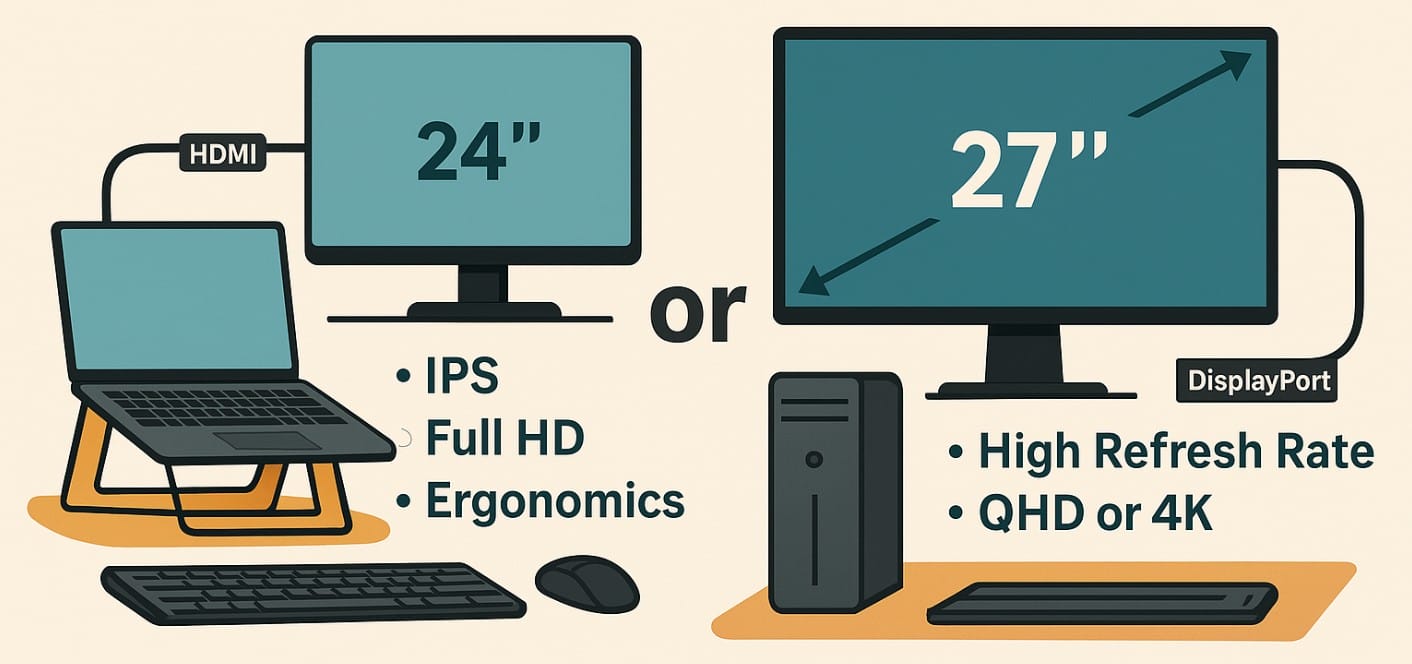
When you’re shopping for a new monitor, ask this – What am I going to connect this monitor to a laptop or a desktop?
This one choice changes everything. A monitor that’s perfect for your gaming desktop may be a waste of money if you’re using a compact work laptop. And the sleekest monitor for a MacBook may not even connect properly to your older CPU.
This post helps you choose the right monitor for your setup, so you don’t overspend or end up with compatibility issues later.
1. If You’re Using a Laptop: Think Comfort, Simplicity, and Ergonomics
WFH professionals, college students, freelancers, and households with 1-2 laptops for everything.
- Size: Stick to 22″-24″ if you’re short on desk space.
- Resolution: Full HD (1080p) is more than enough unless you do video editing.
- Panel: IPS gives better color and viewing angles ideal for mixed lighting and multitasking.
- Ports: HDMI is most common, USB-C (with DisplayPort Alt Mode) works for newer laptops like MacBooks or high-end thin-and-lights.
- Refresh Rate: 75Hz is smoother for scrolling and everyday use than 60Hz.
Your laptop screen is too low so pair your monitor with a laptop stand + keyboard/mouse.
Position the monitor at eye level and use it as the main screen, with your laptop as secondary.
Avoid:
- 4K or QHD monitors your laptop may not support them well
- High refresh rate displays (unless you’re gaming on a gaming laptop)
- Extra-large monitors most work desks in Indian homes are shallow
2. If You’re Using a Desktop: Think Power, Ports, and Visual Goals
Gamers, home office users with tower CPUs, and older workstations.
- Size: 24″-27″ is ideal, depending on desk space
- Resolution: Full HD for basic use, QHD for visual work or high-end GPUs
- Panel:
- IPS for color accuracy
- VA for deeper blacks and better movie/game contrast
- Ports: DisplayPort or HDMI 2.0 is usually better than older VGA or DVI
- Refresh Rate: 144Hz or higher if you’re gaming or want ultra-smooth visuals
Desktops often support multi-monitor setups consider dual 24″ or 27″ screens if space allows.
Wall mounting or monitor arms help free up space if you have a full-sized tower under the desk.
Avoid:
- USB-C-only monitors (many desktops don’t support this without a converter)
- Monitors with only one HDMI port if you use multiple input devices
3. Laptop vs Desktop Monitor Needs Comparison:
| Feature | Laptop Setup | Desktop Setup |
|---|---|---|
| Primary concern | Port compatibility, simplicity | Performance, expansion options |
| Best screen size | 22″-24″ | 24″-27″ or dual screens |
| Connection type | HDMI or USB-C (check Alt Mode) | DisplayPort or HDMI 2.0+ |
| Use pattern | One person, portable work | Fixed setup, gaming, editing, extended use |
| Bonus features | Eye comfort, tilt stand, compact base | High refresh rate, color calibration |
4. What If You Use Both Laptop and Desktop?
In many Indian homes, one monitor serves both devices a gaming desktop for the kids, and a work laptop for you.
If that’s your case:
- Choose a monitor with both HDMI and DisplayPort inputs
- Go for 24″ or 27″, IPS, Full HD or QHD, and 75-144Hz based on who uses it more
- Make sure the monitor has an easy input toggle button/menu
- Use a monitor arm or adjustable stand if you need to switch positions often
If you’re using one keyboard and mouse for both systems, look for a monitor with KVM switch support it makes switching seamless.
5. Let Your Computer Decide the Screen Not the Other Way Around
Choose based on your PC setup the device you’ll actually plug it into.
- If you’re using a laptop, go light, sharp, and ergonomic
- If you’re on a desktop, go bold, big, and performance-driven
- If you’re using both, pick a monitor that plays nicely with both worlds
In India, where space, devices, and budgets often overlap, buying the right monitor for your computing system saves time, money, and effort.

