
Using Alexa, Smart TVs or Cameras? Make Sure Your Wi-Fi Can Handle It
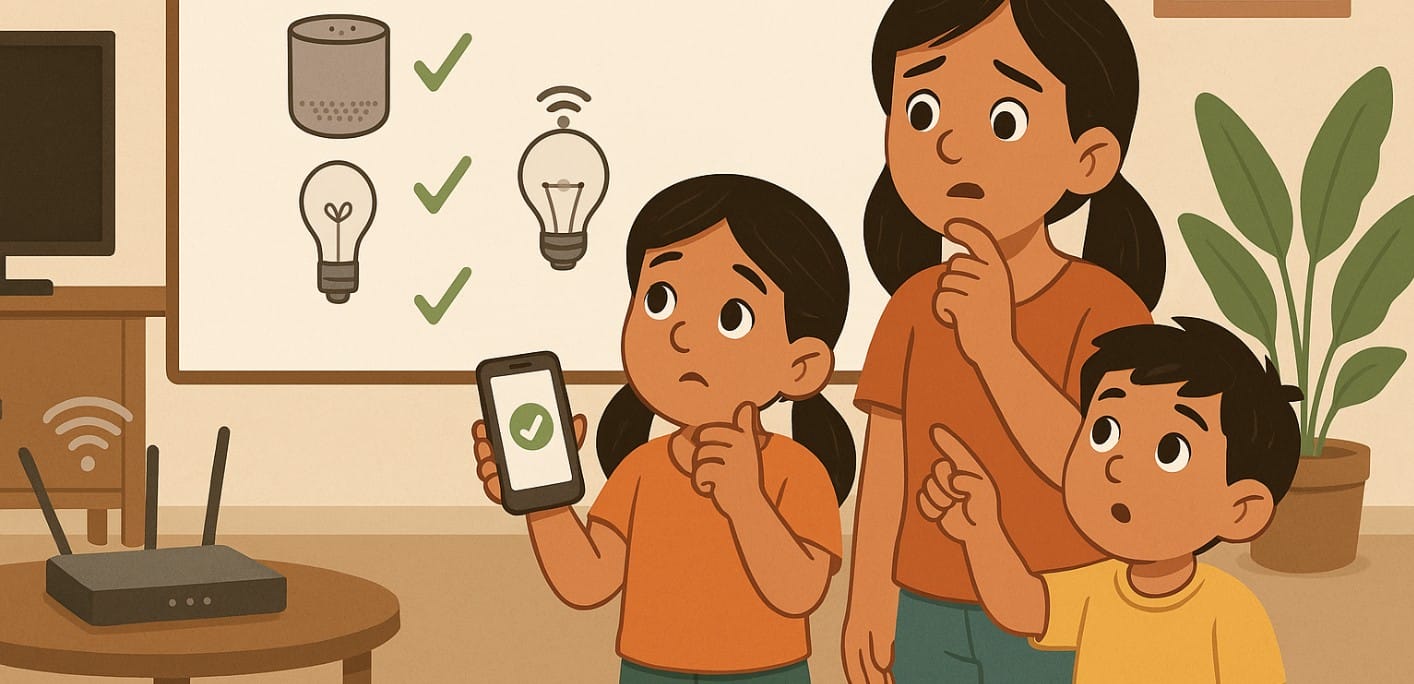
Setting up a smart home in India is easier than ever smart TVs, Alexa, security cameras, and app-controlled lights are now common. But before you start adding all your devices to Wi-Fi, make sure your broadband is actually ready for it.
Even with a 100 Mbps or 300 Mbps plan, poor setup can lead to delays, dropped connections, or security risks.
This post walks you through what to check and fix first, so your smart devices work smoothly without slowing down the rest of your home internet.
1. Check If Your Broadband Plan Can Handle the Load
Smart devices stay connected 24/7 even if you’re not using them. Security cameras, smart bulbs, and even washing machines now talk to the cloud. That means your bandwidth gets used in the background.
- For a few smart lights and Alexa devices, even 50 Mbps is fine
- If you’re using smart TVs, cameras, cloud backup, or 10+ devices, go for 100 Mbps or more
- Check upload speeds too some cameras need 1-3 Mbps per stream
If you experience random buffering or disconnections, you might be exceeding what your plan or router can handle.
2. Know Which Wi-Fi Band Your Devices Use – 2.4 GHz vs 5 GHz
Most smart gadgets in India still run on 2.4 GHz Wi-Fi, while newer routers also offer 5 GHz.
- 2.4 GHz
- Longer range, works better through walls
- Slower, more crowded
- Best for smart plugs, switches, sensors, bulbs
- 5 GHz
- Faster, but shorter range
- Ideal for smart TVs, laptops, or phones in the same room
What to do:
- Don’t connect everything to the same band
- Split your Wi-Fi network into 2.4 GHz and 5 GHz if your router allows it
- Use the 2.4 GHz band for devices that don’t move (e.g., switches, security sensors)
3. Place Your Router Smartly – It Affects Everything
If your router is hidden in a corner, devices in the other room might lose signal or keep disconnecting.
- Keep the router in the middle of your home, not inside a cabinet
- Elevate it place it on a shelf, not the floor
- Keep it away from microwaves, fridges, or thick cement walls
- For larger flats or duplex homes, consider mesh Wi-Fi or a repeater
Router placement is one of the biggest factors that affect smart home performance especially for 2.4 GHz devices.
4. Secure Your Wi-Fi Network Before Connecting Devices
Smart devices are always online but they often don’t get software updates like your phone or laptop. That makes them more vulnerable to hacking if your network is weak.
What to do:
- Use a strong, unique Wi-Fi password (not your name or flat number)
- Don’t keep the default admin password of your router
- Update router firmware regularly via its admin app or dashboard
- If possible, set up a guest network just for smart devices keep your work devices separate
5. Prepare for More Bandwidth Demand Over Time
Even if things work fine today, your network may start to struggle as you add more smart devices later.
- Keep track of how many devices are connected (check in your router app)
- If you have 10+ devices, upgrade your plan or router before it slows down
- Use Quality of Service (QoS) in your router to give priority to your TV, work laptop, or video calls
- If your house is large or has Wi-Fi blind spots, consider using a mesh router system
6. Always Check Compatibility Before You Buy a New Smart Device
Not every smart gadget works on every network. Some won’t connect if your Wi-Fi is set to only 5 GHz. Others might not support newer routers with WPA3 encryption.
- Before buying, check:
- Does it support 2.4 GHz or 5 GHz?
- Does it work with JioFiber or Airtel routers?
- Does the app support Android and iPhone in India?
- Keep all smart devices updated apps usually push firmware automatically, but check every few months
A smart home starts with a smart internet setup
Before you start connecting lights, cameras, or voice assistants, make sure your broadband is up for the job.
To recap:
- Get a plan with enough speed and upload bandwidth
- Place your router wisely and update its firmware
- Use 2.4 GHz for low-power gadgets, and 5 GHz for high-speed streaming
- Secure your Wi-Fi and check compatibility before adding more devices

