
Boost Your Productivity: Add a Monitor to Your Laptop in India
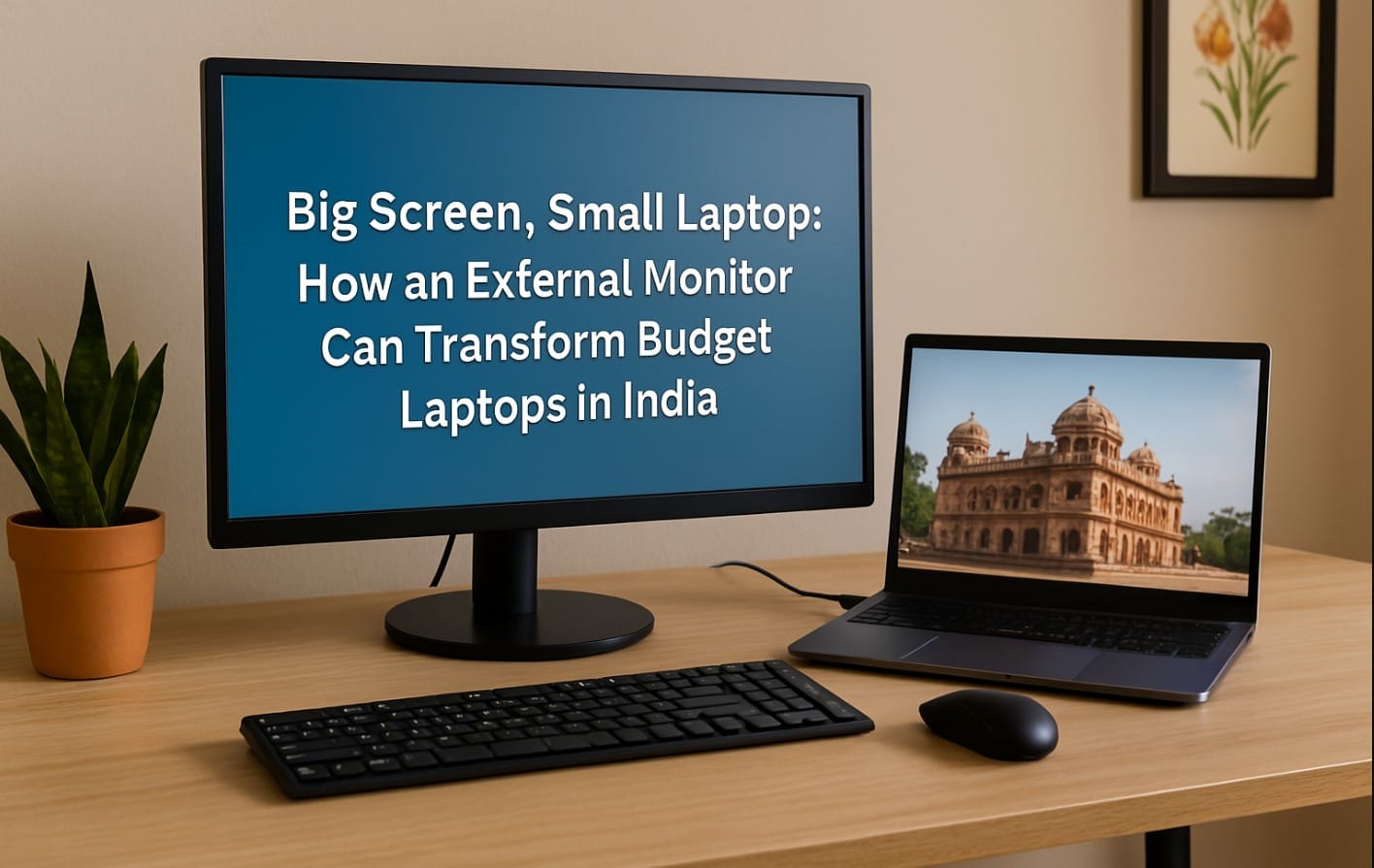
You’ve got a budget laptop. Maybe it’s a 14-inch or 15.6-inch model, perfect for portability and price. But when it comes to long hours of work, online classes, content creation, or even casual multitasking, that screen can quickly start to feel like a limitation.
Good news: you don’t need to replace your laptop. You just need to connect it to an external monitor and everything changes.
1. What Adding a Monitor Really Solves
If you’ve ever squinted at a spreadsheet, struggled with color correction, or juggled tabs in frustration, you already know the pain points. A second screen isn’t just about space it solves real problems that budget laptops often bring.
More Space to Work
- That 14″ display is fine for basics, but it’s tight for multitasking
- A 22″ or 24″ monitor gives you room to spread out view full documents, open two apps side-by-side, or keep reference material always visible
Sharper Colors, Better Brightness
- Many budget laptops in India offer 45-65% sRGB color accuracy
- External monitors (especially IPS models) offer 100% sRGB, making them perfect for editing, YouTube thumbnails, or even better movie watching
- Brightness on external monitors also exceeds typical laptop panels, making them easier on the eyes during daytime use
Better Comfort, Less Neck Strain
- Built-in laptop screens sit too low over time, you end up slouching or craning your neck
- A monitor at eye level encourages better posture, reduces fatigue, and feels more like a desktop experience
Multitasking Without Frustration
- Working on Zoom + taking notes
- Watching a tutorial + trying it in a different app
- Writing + referencing websites
One small laptop screen makes this difficult a second screen makes it feel natural.
2. This Simple Upgrade Just Makes Sense
In India, many people work or study from compact spaces bedrooms, shared desks, dining tables. They don’t always have the room or budget for a full desktop.
But with a single cable and a well-placed monitor, you suddenly have:
- A larger, more comfortable display
- Room to keep tools or video calls open while you work
- An experience that feels premium without buying a new machine
3. How to Connect a Monitor to Your Laptop The Simple Way
- HDMI: Most laptops include this port plug and go
- USB-C (with Display Alt Mode): Works on newer laptops and MacBooks
- USB to HDMI adapter: Works if your laptop has only USB-A
- Once connected, go to your display settings and choose Extend mode so your monitor acts as an extra screen, not a duplicate
You don’t need to install drivers in most cases Windows or macOS handles it automatically.
4. Best Screen Sizes for Laptop Users in India
| Monitor Size | Ideal Use | Why It Works |
|---|---|---|
| 22″ Full HD | Students, casual users | Big jump from laptop, affordable, fits small desks |
| 24″-27″ Full HD/QHD | Freelancers, professionals | Balanced size, supports 2-3 open apps side-by-side |
| 32″ 4K | Editors, creators | High resolution, crisp image quality for serious workspaces |
5. Practical Use Cases: Laptop Connected to One/Two Monitors
- A commerce student uses the monitor for recorded lectures, while taking notes on the laptop
- A freelance designer works in Canva on the big screen while browsing stock images on the laptop
- A social media manager edits Instagram posts with better color precision
- A content creator writes scripts on one screen and edits videos on the other
- A remote employee runs meetings and presentation decks on separate screens without confusion
6. Just Add a Keyboard and Mouse and It Feels Like a Desktop
If you want to go one step further, connect a wireless keyboard and mouse, close your laptop lid, and use the monitor as your main screen.
It’s more ergonomic, looks cleaner, and feels like a full setup using the laptop you already own.
7. Make Your Laptop Feel Like a Desktop Without Spending Much
Buying a monitor is one of the best tech decisions you can make especially if your budget laptop is starting to feel too small, or too limited.
- You’ll work longer without strain.
- You’ll edit better.
- You’ll multitask smarter.

