
Set Your Monitor Right: Simple Ergonomic Adjustments for Better Health
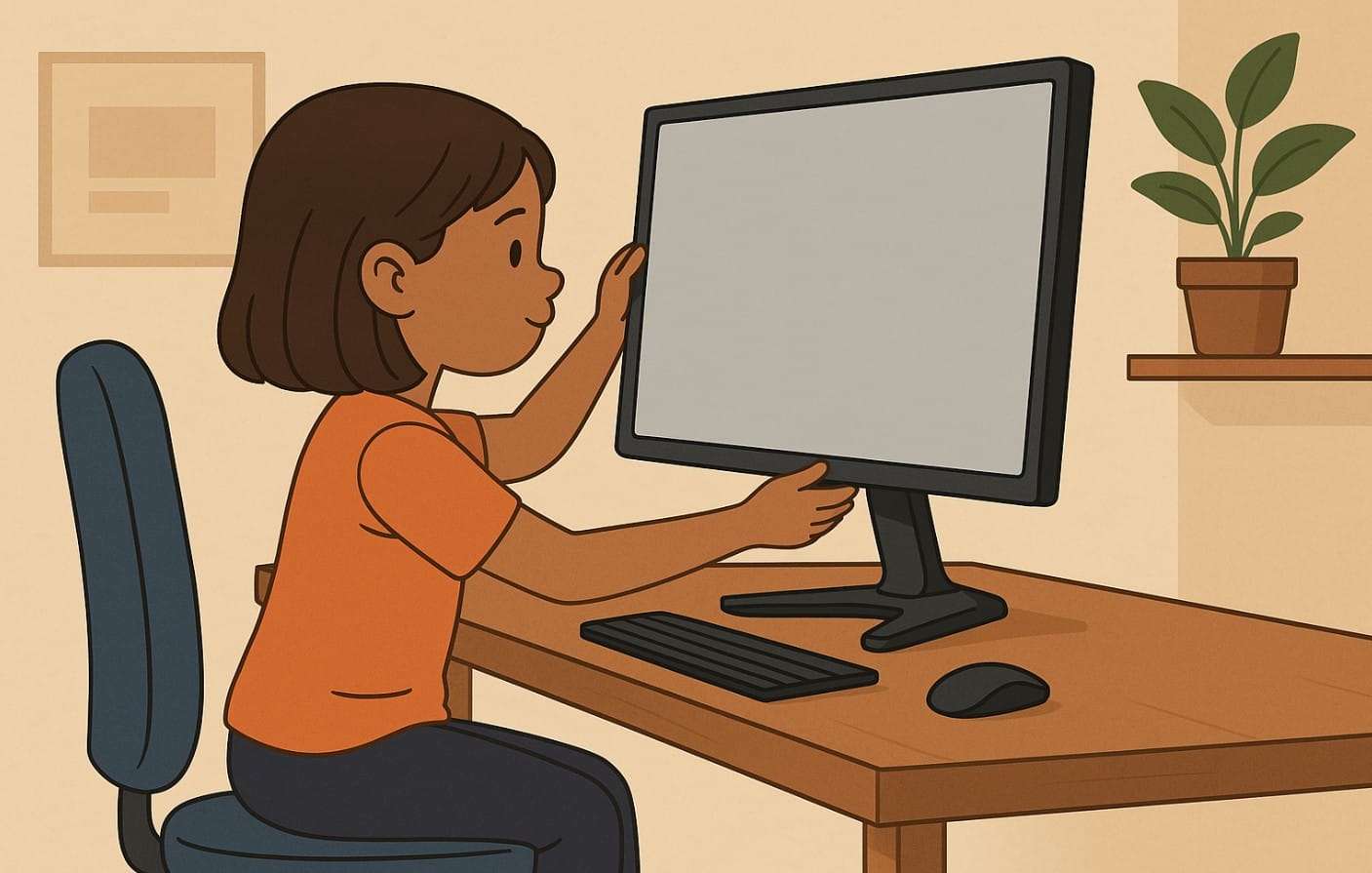
In recent years, India has witnessed an incredible shift to work-from-home setups, e-learning, and increased screen-based leisure activities. While technology has made many things easier, it’s also led to longer hours in front of screens.
Unfortunately, this extra screen time combined with improper screen and body positioning can lead to neck pain, back problems, eye strain, and other uncomfortable side effects. Proper monitor ergonomics, however, can help you avoid these issues and ensure that your workspace supports your body in the healthiest way possible.
1. The Hidden Dangers of Bad Posture
We’ve all heard it before “Sit up straight!” or “Don’t slouch!” These aren’t just random pieces of advice; they’re keys to avoiding discomfort and pain.
Common Issues Caused by Bad Posture:
- Neck strain: Looking down or tilting your head too much can cause neck stiffness.
- Back pain: Slouching, sitting for long hours without support, or leaning forward causes spinal discomfort.
- Eye strain: Improper brightness settings and distance can cause headaches, blurry vision, and fatigue.
- Shoulder pain: Incorrect arm positioning from poor desk height or incorrect keyboard placement leads to tension in the shoulders.
2. What Is Monitor Ergonomics and Why Should You Care?
Monitor ergonomics refers to how your screen is positioned to ensure that you maintain a healthy posture while working or studying. Proper ergonomics not only prevent pain but can also improve your focus, productivity, and overall comfort.
Benefits:
- Reduces the risk of musculoskeletal disorders (neck, back, shoulder pain)
- Improves circulation by supporting a more natural sitting posture
- Reduces eye strain by adjusting brightness and positioning
- Boosts productivity as comfort and less pain make it easier to work efficiently
3. How to Set Up Your Monitor for Comfort
Position the Monitor at Eye Level
Your screen should be at or just below eye level. The top of the screen should align with your eyes or be about 5-15 degrees below eye level to ensure you’re looking at it naturally without straining your neck.
Keep the Monitor at a Comfortable Distance
- Your monitor should be about an arm’s length away around 50-70 cm from your face.
- If the screen is too close, your eyes may have to work harder to focus. If it’s too far, you may find yourself squinting.
Tilt the Screen Slightly
- Tilt the monitor 5-15 degrees back so that you can look straight at the screen without having to tilt your head forward or backward.
4. Chair and Desk Setup: It’s Not Just About the Monitor
Your monitor setup doesn’t work in isolation. The rest of your workstation especially your chair and desk plays a huge role in your ergonomic health.
The Right Chair for Support
- Ensure that your chair has good lumbar support that supports the natural curve of your spine.
- Keep your feet flat on the floor, and adjust your chair height so that your knees are at a 90-degree angle.
- Avoid sitting too far from your desk or too close your elbows should be at a 90-degree angle when typing.
Desk Height Matters
- Your desk should allow your arms to remain at a comfortable 90-100 degree angle when you type or use your mouse.
- Ensure there is enough space to move the keyboard and mouse comfortably.
5. Managing Screen Brightness and Glare
Reduce Eye Strain
- Set the brightness of your monitor to be roughly equal to the lighting in the room. Too bright or too dim can cause eye fatigue.
- Blue light filters are helpful for evening work, especially if you plan to work late.
Positioning for Light
Position your screen to avoid direct sunlight or overhead lights hitting the screen. Matte screen finishes or anti-glare filters can help reduce reflections.
6. Taking Breaks: The 20-20-20 Rule
- Even with the best setup, your body still needs regular breaks.
- Follow the 20-20-20 rule: every 20 minutes, look at something 20 feet away for at least 20 seconds. This gives your eyes a break and helps prevent digital eye strain.
- Also, take time to stand up and stretch every hour to relieve any muscle tension.
7. Monitor Features to Look For in Ergonomic Setup
Height Adjustability
Choose a monitor with height-adjustable stands. This makes it easier to match your screen to your eye level.
Tilt and Rotation
A tilt function allows you to adjust the angle, while rotation features help you switch between landscape and portrait modes, especially useful for reading or coding.
Blue Light Filter or Eye Care Mode
Many modern monitors come with blue light reduction settings, which are especially helpful during long hours of work or study.
8. Ergonomics in Indian Context
In India, many people work from home in smaller spaces, often sharing a desk or making do with makeshift setups. It’s important to focus on:
- Space-saving adjustments (like wall mounts or monitor risers)
- Dealing with sunlight through window positioning or curtains
- Posture in compact desks especially for Indian homes with limited space
9. Why Ergonomics Matter More Than Ever
Incorporating ergonomic practices into your monitor setup isn’t just about comfort it’s about protecting your health in the long run. By spending a few minutes setting up your workstation properly, you can prevent neck pain, eye strain, and back discomfort, and work for longer hours without discomfort.

