
The Most Common Monitor Problems and How to Fix Them
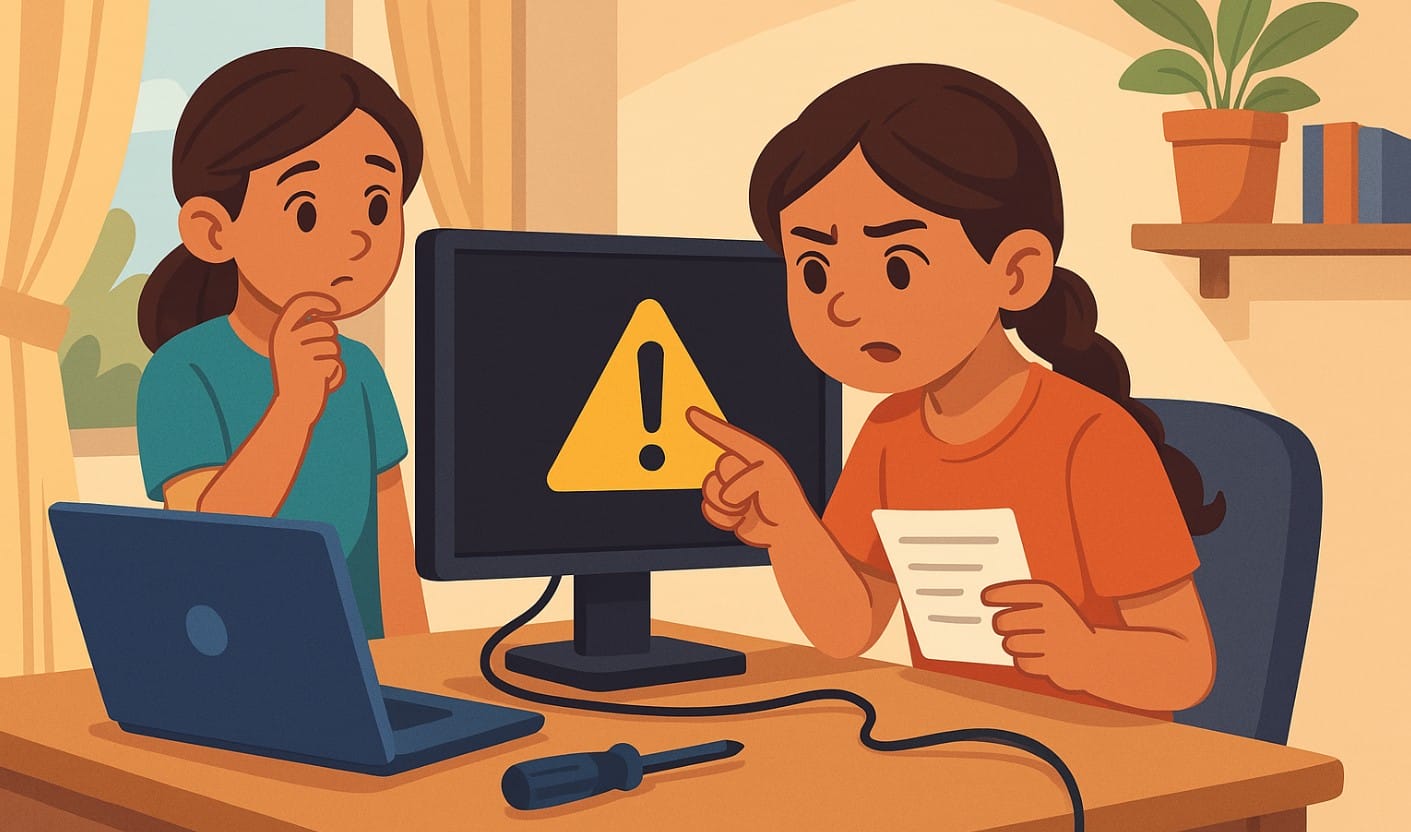
Monitors are essential parts of our daily lives. Whether you’re working from home, attending online classes, gaming, or watching movies, a monitor is one of the most used devices. But what happens when things go wrong? A flickering screen, no display, color issues they can be frustrating, but they’re usually not as serious as they seem.
In India, where power fluctuations, dust, and humidity can play havoc on electronics, it’s important to be prepared to tackle these common problems yourself. Let’s take a look at the most common monitor issues you may face and simple solutions you can apply to get your monitor back to perfect condition.
1. Common Monitor Problems and How to Fix Them
A. No Display on Screen
Cause: No signal from the computer, loose cables, or power issues.
Solution:
- Check the power: First, make sure the monitor is powered on and the power cable is securely connected.
- Check cables: Ensure that the cables (HDMI, VGA, DisplayPort) are securely plugged into both the monitor and your computer.
- Laptop settings: If using a laptop, ensure that the monitor is selected as the primary display. Go to your display settings to check this.
- Power surge protection: In homes prone to power fluctuations, consider using a UPS (Uninterruptible Power Supply) or surge protector to protect the monitor from sudden power cuts or surges.
B. Flickering or Blurry Screen
Cause: Incorrect refresh rate, faulty cables, or driver issues.
Solution:
- Check the refresh rate: Go to your Display Settings and make sure the refresh rate is set to the optimal level (usually 60Hz to 75Hz).
- Use quality cables: If the cable is old or damaged, replace it with a high-quality HDMI, DisplayPort, or VGA cable.
- Update graphics drivers: Outdated or corrupted drivers can cause display issues. Make sure to update your graphics card drivers.
- Adjust resolution: If the resolution is set too high or low, adjust it to the monitor’s recommended setting for better clarity.
C. Color Issues: Too Bright, Too Dark, or Distorted Colors
Cause: Incorrect display settings, power surges, or hardware issues.
Solution:
- Adjust brightness and contrast: Use your monitor’s on-screen display (OSD) menu to set brightness and contrast levels according to your environment.
- Use color calibration tools: Many operating systems have built-in calibration tools (like Windows’ Color Calibration or macOS’s Display Settings) to ensure your monitor displays accurate colors.
- Turn off eco mode: If your monitor has an eco mode or energy-saving feature, it might be dimming the screen too much turn it off and adjust manually.
- Power surges: Power fluctuations or surges can lead to color distortion. Use a surge protector or UPS to prevent this.
D. Screen Artifacts, Pixels, or Dead Pixels
Cause: Damaged pixels, faulty graphics card, or poor connection.
Solution:
- Check for dead pixels: Use online tools to check for dead pixels. If you have persistent dead pixels, it could be time to contact the manufacturer for a replacement.
- Reconnect cables: A loose or damaged cable could cause screen artifacts. Try disconnecting and reconnecting the cables or using another port.
- Graphics card drivers: Update or reinstall your graphics drivers. Sometimes the issue is related to outdated or corrupted graphics drivers, not the monitor itself.
2. Connectivity Issues in Indian Homes: The Common Culprits
HDMI Not Working or Flickering
Cause: Loose connections, outdated cables, or graphic card issues.
Solution:
- Check HDMI cables: Ensure you’re using high-quality HDMI cables. Replace any old or damaged cables.
- Reconnect: Unplug the HDMI cable from both the monitor and the computer, then plug it back in securely.
- Test other ports: If your monitor has multiple HDMI ports, try using another one.
- Graphics drivers: Ensure that the graphics drivers on your computer are up to date. Outdated drivers can affect signal output.
USB Ports Not Recognizing the Monitor
Cause: Faulty ports, outdated drivers, or loose connections.
Solution:
- Reconnect: Unplug and reconnect the cables, and try using a different USB port or USB-to-HDMI adapter.
- Check drivers: Update the USB drivers on your computer.
- Power issues: In homes with unstable electricity, consider using a surge protector to ensure the system is properly powered.
3. Environmental Factors Impacting Monitor Performance in Indian Homes
Dust and Humidity Issues
Cause: Dust and humidity can affect the internal components of the monitor, causing display issues.
Solution:
- Regular cleaning: Clean your monitor regularly using a microfiber cloth to remove dust and smudges.
- Use a dust cover: When not in use, cover your monitor with a dust cover to protect it from accumulating dirt.
- Use a dehumidifier: If you live in a humid area, use a dehumidifier to reduce moisture in the air that could affect your monitor.
Power Fluctuations and Surges
Cause: Voltage fluctuations common in many Indian homes can cause monitor damage, flickering, or screen shutdowns.
Solution:
- Surge protector: Always use a surge protector or UPS (Uninterruptible Power Supply) to protect your devices from power surges.
- Install voltage stabilizer: If power fluctuations are frequent, consider installing a voltage stabilizer for your equipment to prevent long-term damage.
4. When to Call for Professional Help
While most issues can be solved at home, sometimes you might encounter more serious problems that require a professional:
- Physical damage to the screen, such as cracks or dead pixels that can’t be fixed through troubleshooting.
- Hardware failure, such as a malfunctioning graphics card, broken internal components, or persistent display issues that can’t be resolved with basic fixes.
- If you suspect damage from power surges or voltage fluctuations, a technician may need to inspect the internal components for any lasting effects.
5. Try These Quick Fixes for Monitor Problems
Knowing how to troubleshoot common monitor problems not only saves you time and money but also ensures that your monitor stays in top condition for as long as possible. By regularly cleaning, ensuring proper connections, and protecting your monitor from environmental factors like power surges and dust, you can prevent many common issues.
If you do encounter a problem that’s beyond your ability to fix, don’t hesitate to call a professional.

